
GraphQL
GraphQL is a query language for APIs and a runtime for fulfilling those queries with your existing data. GraphQL provides a complete and understandable description of the data in your API, gives clients the power to ask for exactly what they need and nothing more, makes it easier to evolve APIs over time, and enables powerful developer tools. It is a single API face for different clients like mobile, desktop apps, tablets. ASP.NET Zero includes an implementation of GraphQL API. In the solution the *.GraphQL project exposes some built-in queries like Organization Units, Roles and Users . There is also a unit test project *.GraphQL.Tests in the test folder. You can add your own GraphQL unit tests to this project.
For more information about GraphQL visit https://graphql.org/
GraphQL Structure
The *.GraphQL project consists of a MainSchema. In the MainSchema there is QueryContainer that hosts all queries. Out of the box, there are queries for Roles, Organization Units and Users.
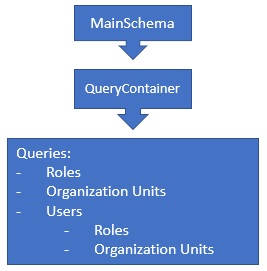
The .GraphQL project depends on AbpZeroTemplateCoreModule. It is used in the *.Web.Host and *.Web.Mvc projects. So both ASP.NET Core Angular and ASP.NET Core MVC templates contain GraphQL project.
The GraphQL is being added in the Configure method of *.Web.Host.Startup for Angular project and *.Web.Mvc.Startup for MVC project.
There is also GraphQL Playground included in the project. GraphQL Playground is an IDE like Swagger, helps you to write your queries directly from your website. The default endpoint of the playground is http://your-domain.com/ui/playground
app.UseGraphQL<MainSchema>();
app.UseGraphQLPlayground(new GraphQLPlaygroundOptions());
The GraphQL middleware is being added in ConfigureService method of *.Web.Host.Startup for Angular project and *.Web.Mvc.Startup for MVC project.
services.AddAndConfigureGraphQL();
AddAndConfigureGraphQL() is an extension method to add the GraphQL middleware and makes necessary configurations. In debug mode, all GraphQL exceptions are being sent to the client but in release mode exceptions are not being sent to the client.
Enabling GraphQL
By default, GraphQL is disabled. To enable the GraphQL, open WebConsts.cs in the *.Web.Core project and set GraphQL.Enabled = true.
Web.Core/Common/WebConsts.cs
public static class WebConsts
{
    //ignored...

    public static class GraphQL
    {
        //ignored...
        public static bool Enabled = true;
    }
}
GraphQL Endpoint
The default GraphQL endpoints are;
Changing The Default GraphQL Endpoint
You can change the default endpoint of the GraphQL. To do this, open the Startup.cs in the *.Web.Host project for Angular or in the *.Web.Mvc project for MVC. In the Configure method, find the line app.UseGraphQL<MainSchema>(). And set the path parameter like below;
app.UseGraphQL<MainSchema>(path: "/mygraphql");
This will change your endpoint to yourdomain.com/mygraphql.
GraphQL Playground
GraphQL Playground is an extension tool that helps you write your GraphQL queries easily. It supports autocompletion & error highlighting. It is included AspNet Zero but disabled by default. The default GraphQL Playground endpoints are;
There is also a desktop version of the GraphQL Playground. The desktop app is the same as the web version but includes these additional features:
- Partial support for graphql-config enabling features like multi-environment setups (no support for sending HTTP headers).
- Double click
*.graphqlfiles to open.
To download GraphQL Desktop version click on the following link;
https://github.com/prisma/graphql-playground/releases
Enabling GraphQL Playground
By default, GraphQL Playground is disabled. To enable it, open WebConsts.cs in the *.Web.Core project and set GraphQL.PlaygroundEnabled=true in the WebConsts.GraphQL class.
Web.Core/Common/WebConsts.cs
public static class WebConsts
{
    //ignored...

    public static class GraphQL
    {
        //ignored...
        public static bool PlaygroundEnabled = true;
    }
}
Changing GraphQL Playground Default Endpoint
You can change the default endpoint of the GraphQL Playground. To do this, open Startup.cs of the *.Web.Host for Angular or the *.Web.Mvc for MVC. In the Configure method, find the lineapp.UseGraphQLPlayground() and set the Path property of GraphQLPlaygroundOptions ;
app.UseGraphQLPlayground(new GraphQLPlaygroundOptions
{
    Path = new PathString("/myplayground")
});
This will change your playground endpoint to yourdomain.com/myplayground.
GraphQL Playground Settings
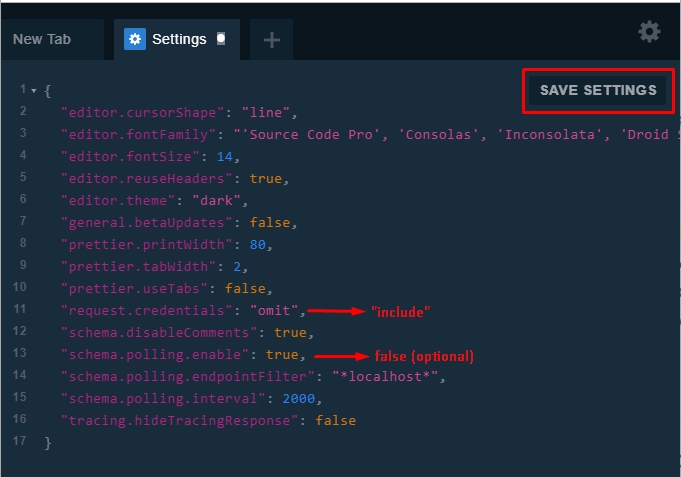
To be able to run the queries that requires authentication, you need to open Playground on your browser, open settings tab and change the request.credentials from omit to include . This is needed for cookie authentication.
On the other hand, Playground uses polling to update the schema and refreshes the schema every 2 seconds. You can also safely disable this option to not see flooding XHR requests on your browser's network tab.
The necessary changes are;
{
   "request.credentials": "include",
   "schema.polling.enable": false
}
After these settings, you need to save it by pressing SAVE SETTINGS button.
Running Queries on GraphQL Playground
Playground gives you the advantage of writing the queries with intellisense and see the results on your browser. There are two types of queries; Queries require authentication and Queries don't require authentication. For the queries that don't require authentication, you can directly write the query on the Playground and see the results. But for the authentication required queries you have to authenticate first. To authenticate, read the next section of the project that is relevant to you..
Authenticating Playground Requests in MVC Project
Authenticating With Cookie
MVC project uses cookie authentication. Before running any queries that need authentication, you need to login to your website to retrieve the authentication cookie. Start your *.Web.Mvc project, open your browser and navigate to https://localhost:44302/Account/Login. After successful login, you will have a valid authentication cookie in your browser's storage. Now you can go to https://localhost:44302/ui/playground and run your query as authenticated.
Authenticating Playground Requests in Angular Project
Angular project uses both token (Bearer) authentication and cookie authentication. The simplest way is authenticating with cookie.
Authenticating With Cookie
Start your *.Web.Host project and go to https://localhost:44301/ui/login. After the successful login, you will see the GraphQL Playground box in the redirected page. Click the link that goes to https://localhost:44301/ui/playground and run your query as authenticated.
Authenticating With Token
Alternatively you can use token authentication in Angular project.
Make a post request to https://localhost:44301/api/TokenAuth/Authenticate to get the token.
See the below request to get the token:
POST /api/TokenAuth/Authenticate HTTP/1.1
Host: localhost:22742
Content-Type: application/json
cache-control: no-cache

{
	TenancyName: "",
	UserNameOrEmailAddress: "admin",
	Password: "123qwe"
}
You will get a similar response like below. You will use accessToken value.
{
    "result": {
        "accessToken": "eyJhbGciOiJIUzI1NiIsInR5cCI6IkpXVCJ9.eyJodHRwOi8vc2NoZW1hcy54bWxzb2FwLm9yZy93cy8yMDA1LzA1L2lkZW50aXR5L2NsYWltcy9uYW1laWRlbnRpZmllciI6IjEiLCJodHRwOi8vc2NoZW1hcy54bWxzb2FwLm9yZy93cy8yMDA1LzA1L2lkZW50aXR5L2NsYWltcy9uYW1lIjoiYWRtaW4iLCJBc3BOZXQuSWRlbnRpdHkuU2VjdXJpdHlTdGFtcCI6IktGWDUzQldLWlNZNUE1TjNQM0xYRFM2S1NUNUIyRDdPIiwiaHR0cDovL3NjaGVtYXMubWljcm9zb2Z0LmNvbS93cy8yMDA4LzA2L2lkZW50aXR5L2NsYWltcy9yb2xlIjpbIkFkbWluIiwiMjU2ZTc4NmVmZmFmNDJmZDk5N2MyNTk5MTNjNjEyNDciXSwic3ViIjoiMSIsImp0aSI6ImZkMmY3NWFhLWNiMWItNDlmMi1iYjg2LWZjNTNiMmZhYTI3NyIsImlhdCI6MTU1MjYzOTM5NiwidG9rZW5fdmFsaWRpdHlfa2V5IjoiNjFhOGVkNjYtMTMwYS00ODhhLWEwMTAtYThkMDI2M2RiNTUxIiwidXNlcl9pZGVudGlmaWVyIjoiMSIsIm5iZiI6MTU1MjYzOTM5NiwiZXhwIjoxNTUyNzI1Nzk2LCJpc3MiOiJBYnBaZXJvVGVtcGxhdGUiLCJhdWQiOiJBYnBaZXJvVGVtcGxhdGUifQ.nGcwto1Ih8z15FIZ_4lAXc_Q7Lf1ccJwKDAnGh8AzY8",
        "encryptedAccessToken": "wNYmO41/48SHNstaLVXxHCCre29BZQl1NhC6NM3R3rzpXtPQxVzH6jEzA/QhXFN5tu6Fk7pO53uppm1mVXMZgxbyRVz26dnepi/FyB6axBY+6gq1GL+uRQgoiFUCjRN2p8w6LevViwKlHyWZZJZO1DGVSjAi1m2U+og9pkHw9/QR4Nl/DPnoP9JYDMpZ1zxx09u6s0GZ9/Q5Sjk+L0UfcSCbl38X8he5w9UIn/Hvxh7ysM1CiPLsoOwtbiieSRVmrmt0JjnipAn4/K283F8GrGwzwgehWsqefmUnM0ckMwP9ZAdwQxWDhxv0IqNw4tDhwUYs/1SYdYozdNzgByhgNOBPzQDObNLlWc4vV5VMOiajyrvabgoLnMvpYCP0YrrR2Trkgw9U1crOz6qWkGpdxJs8t6le2nIPkkMDOuzJL+9gOpxxPd6pOXWTmPN73/ioJF5xcwxX3KnKQX7IbIlv7MRIHQf0EjGdpCk+TMkVcAAYSOGMv/0AMZSS0LZQYDrDCEy1wQMDhH8FT4VaJDnugINdL8TWD7ZX3lYu3HLvTpyDX59wqSqUuT/M0XaTW+J/7lGWOyz8zzPUXPsID4wDAXGe6vfLrzn0Tz9zyeRbXApmmP0aFJN7xfh96O3H4H7L9QWNefIZjq0UMPGmDkCW7FubMRuLNdJNLs6ItfUDCJcDVppn0hNRJB7mpocPeII4fd06Q7YGdbB3sruMYXx/CQxvZCiohK4q0hQxFXqG7Xb2Ig1xYJOA5qT9JikvS2vVcvDGh/+Shn6FQISBwDGwOBjlJ4EupqQ1XalfAqa4IPUjskHsN1spypNb4WMZvu5gooxES4mFdTiJoPPR7WgpauAdu2CHKr7CLla6fBeHfVbNXgVYPEM/mJFnd++RZj5SYul+6FhwZwNfTixawjknoGX9+vJfeYID5V1F4mjN86FAP4caVp5nAOuycdYjgnc6vdvEXjuZ+KU5nVFFO8U5i+Xd9Hc0qMNllF6aM3TilIHVWQKdESuHdBLfCT7MYyeWu1YNh7LsXuadb7eTctUUzxJ3roUh6tg/hyRh9TE7hGvmvucz+2ZJwfnYfLNeXXnTJjsDKIWwHC9v999e5B2LeA==",
        "expireInSeconds": 86400,
        "shouldResetPassword": false,
        "passwordResetCode": null,
        "userId": 1,
        "requiresTwoFactorVerification": false,
        "twoFactorAuthProviders": null,
        "twoFactorRememberClientToken": null,
        "returnUrl": null,
        "refreshToken": "eyJhbGciOiJIUzI1NiIsInR5cCI6IkpXVCJ9.eyJodHRwOi8vc2NoZW1hcy54bWxzb2FwLm9yZy93cy8yMDA1LzA1L2lkZW50aXR5L2NsYWltcy9uYW1laWRlbnRpZmllciI6IjEiLCJodHRwOi8vc2NoZW1hcy54bWxzb2FwLm9yZy93cy8yMDA1LzA1L2lkZW50aXR5L2NsYWltcy9uYW1lIjoiYWRtaW4iLCJBc3BOZXQuSWRlbnRpdHkuU2VjdXJpdHlTdGFtcCI6IktGWDUzQldLWlNZNUE1TjNQM0xYRFM2S1NUNUIyRDdPIiwiaHR0cDovL3NjaGVtYXMubWljcm9zb2Z0LmNvbS93cy8yMDA4LzA2L2lkZW50aXR5L2NsYWltcy9yb2xlIjpbIkFkbWluIiwiMjU2ZTc4NmVmZmFmNDJmZDk5N2MyNTk5MTNjNjEyNDciXSwic3ViIjoiMSIsImp0aSI6ImU1NTY3MTkxLWY0YTktNDZjOC04Mjc3LTgyMjdlYjRiZjNmMCIsImlhdCI6MTU1MjYzOTM5NiwidG9rZW5fdmFsaWRpdHlfa2V5IjoiNjJmYWMzNDMtNDhiOS00MTgzLTkyMWItNGM4Njk5YWQ1YzdhIiwidXNlcl9pZGVudGlmaWVyIjoiMSIsIm5iZiI6MTU1MjYzOTM5NiwiZXhwIjoxNTg0MTc1Mzk2LCJpc3MiOiJBYnBaZXJvVGVtcGxhdGUiLCJhdWQiOiJBYnBaZXJvVGVtcGxhdGUifQ.u6cnxzB6Hnd4VpPYt-hOi23f6YlEkNZdw3cnyzi-0go"
    },
    "targetUrl": null,
    "success": true,
    "error": null,
    "unAuthorizedRequest": false,
    "__abp": true
}
Write the accessToken value to the HTTP headers as seen below. 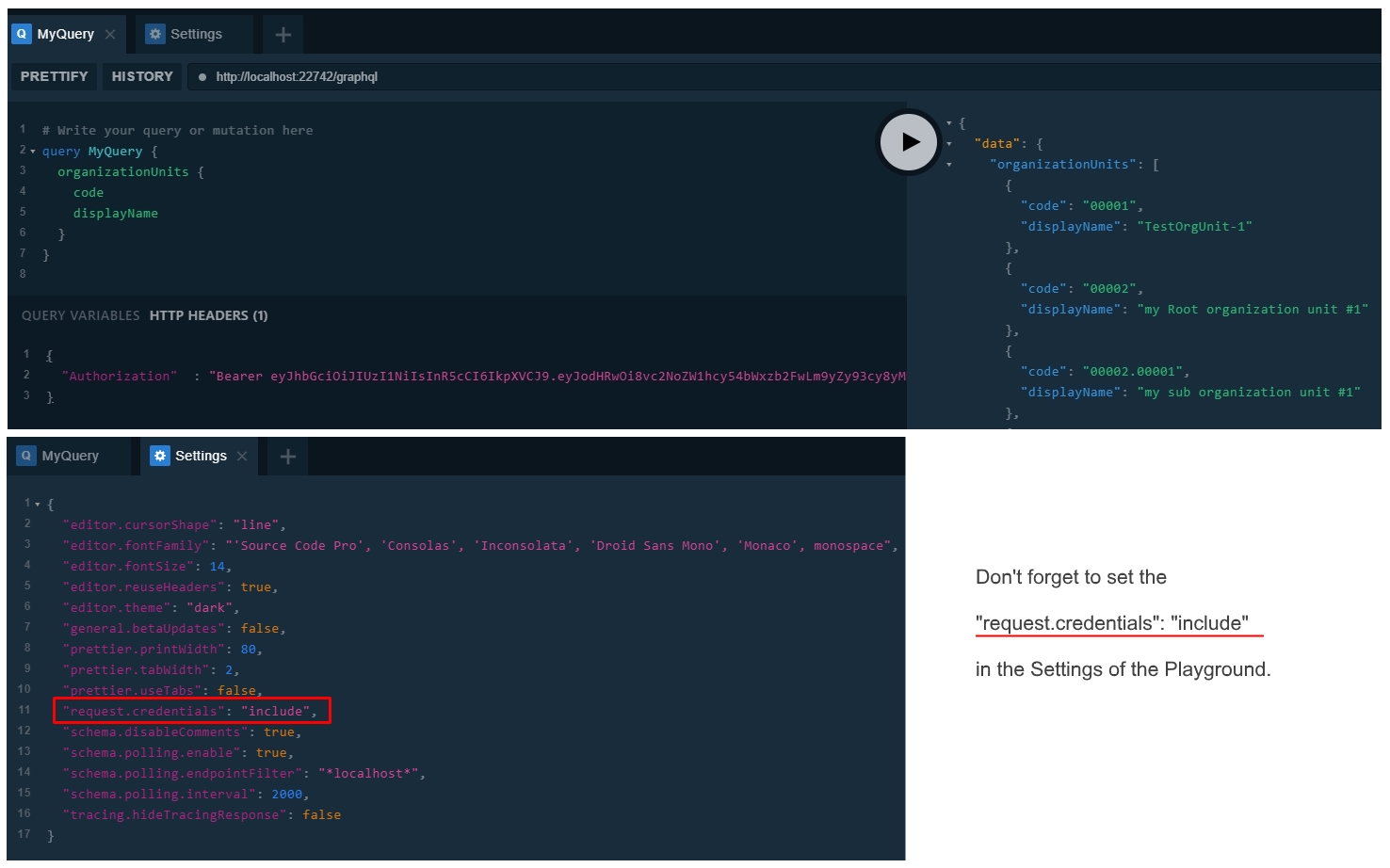
Sample GraphQL Query
Here's a sample query that retrieves built-in entities like role, organizationUnit and user. You can use this query to test if your GraphQL API is working properly.
query MyQuery {
  users(id: 1) {
    totalCount
    items {
      name
      surname

      roles {
        id
        name
        displayName
      }

      organizationUnits {
        id
        code
        displayName
      }
    }
  }

  roles {
    displayName
    id
    name
    tenantId
  }

  organizationUnits {
    id
    code
    displayName
    tenantId
  }
}
Be aware that if your authentication is not valid or if you didn't set "request.credentials": "include" in your Playground settings, you will see the below error response for the authentication required queries.
errors": [
    {
      "message": "GraphQL.ExecutionError: Error trying to resolve users. ---> Abp.Authorization.AbpAuthorizationException: Current user did not login to the application!\r\n   at Abp.Authorization.AuthorizationHelper.AuthorizeAsync(IEnumerable`1 authorizeAttributes) in D:\\Github\\aspnetboilerplate\\src\\Abp\\Authorization\\AuthorizationHelper.cs:line 42\r\n   at Abp.Authorization.AuthorizationHelper.CheckPermissions(MethodInfo methodInfo, Type type) in D:\\Github\\aspnetboilerplate\\src\\Abp\\Authorization\\AuthorizationHelper.cs:line 107\r\n   at Abp.Authorization.AuthorizationHelper.AuthorizeAsync(MethodInfo methodInfo, Type type) in D:\\Github\\aspnetboilerplate\\src\\Abp\\Authorization\\AuthorizationHelper.cs:line 56\r\n   at Nito.AsyncEx.Synchronous.TaskExtensions.WaitAndUnwrapException(Task task)\r\n   at System.Threading.ExecutionContext.RunInternal(ExecutionContext executionContext, ContextCallback callback, Object state)\r\n--- End of stack trace from previous location where exception was thrown ---\r\n   at System.Threading.Tasks.Task.ExecuteWithThreadLocal(Task& currentTaskSlot)\r\n--- End of stack trace from previous location where exception was thrown ---\r\n   at Nito.AsyncEx.Synchronous.TaskExtensions.WaitAndUnwrapException(Task task)\r\n   at Nito.AsyncEx.AsyncContext.Run(Func`1 action)\r\n   at Abp.Authorization.AuthorizationInterceptor.Intercept(IInvocation invocation) in D:\\Github\\aspnetboilerplate\\src\\Abp\\Authorization\\AuthorizationInterceptor.cs:line 20\r\n   at Castle.DynamicProxy.AbstractInvocation.Proceed()\r\n   at Castle.DynamicProxy.AbstractInvocation.Proceed()\r\n   at Castle.Proxies.UserQueryProxy.Resolve(ResolveFieldContext`1 context)\r\n   at MyCompanyName.AbpZeroTemplate.Core.Base.AbpZeroTemplateQueryBase`2.InternalResolve(ResolveFieldContext`1 context) in D:\\Github\\aspnet-zero-core\\aspnet-core\\src\\MyCompanyName.AbpZeroTemplate.GraphQL\\Core\\Base\\AbpZeroTemplateQueryBase.cs:line 47\r\n   at Abp.Threading.InternalAsyncHelper.AwaitTaskWithPostActionAndFinallyAndGetResult[T](/aspnet-mvc-angularjs/latest/Task%601%20actualReturnValue,%20Func%601%20postAction,%20Action%601%20finalAction)\r\n   at GraphQL.Instrumentation.MiddlewareResolver.Resolve(ResolveFieldContext context)\r\n   at GraphQL.Execution.ExecutionStrategy.ExecuteNodeAsync(ExecutionContext context, ExecutionNode node)\r\n   --- End of inner exception stack trace ---",
	   "locations": [
        {
          "line": 2,
          "column": 3
        }
      ],
      "path": [
        "users"
      ],
      "extensions": {
        "code": "ABP_AUTHORIZATION"
      }
    }
]
GraphQL Query Execution Flow
When a new query is initiated, the GraphQL middleware parses the query then routes it to the corresponding query handler which is registered in QueryContainer class of the *.GraphQL project. Out of the box there are 3 query handlers registered in QueryContainer: RoleQuery, UserQuery and OrganizationUnitQuery. The next step is the Resolve method of the query with the query context. The query context has all the information about a query like UserContext, Arguments, Selections and Variables. If there is an [AbpAuthorize] attribute on the Resolve method, AspNet Boilerplate framework checks the related permission of the logged on user and throws ABP_AUTHORIZATION exception when the related permission is not granted. If there is no [AbpAuthorize] attribute, then it can be run by anonymous users. In the Resolve method, the necessary query runs and returns a DTO object. Then the DTO object is being converted to the relevant IGraphType. This conversation is made by the GraphQL middleware and the middleware knows which IGraphType to be converted, as it is registered it in the QueryContainer.
Writing a New GraphQL Query
Let's create a new GraphQL query. For this example we will use AbpAuditLogs that stores all logs in the database. Below is a simplified version of the AuditLog entity.
AuditLog Entity:
public class AuditLog : Entity<long>, IMayHaveTenant
{
    //...ignored other properties
	public virtual int? TenantId { get; set; }
	public virtual long? UserId { get; set; }
	public virtual string ServiceName { get; set; }
	public virtual DateTime ExecutionTime { get; set; }
}
Create a new
DTOclass. Name itAuditLogDto.cs, locate it in theDTOfolder of the *.GraphQL project. Add the[AutoMapFrom(typeof(AuditLog))]attribute to register theAuditLogDtofor mapping. This will be used to map from theAuditLogentity toAuditLogDto.AuditLogDto.cs
[AutoMapFrom(typeof(AuditLog))]
public class AuditLogDto : EntityDto<long>
{
 public int? TenantId { get; set; }
 public long? UserId { get; set; }
 public string ServiceName { get; set; }
 public DateTime ExecutionTime { get; set; }
}
Create a new class in the
Typesfolder of the *.GraphQL project and name itAuditLogType.cs. Derive this class fromObjectGraphType<AuditLogDto>.AuditLogTypewill be used to map from theAuditLogDtoclass.Be careful with the
nullabletypes. You must explicitly define thenullablefield.AuditLogType.cs
public class AuditLogType : ObjectGraphType<AuditLogDto>
{
 public AuditLogType()
 {
 	Field(x => x.Id);
 	Field(x => x.UserId, nullable: true);
 	Field(x => x.TenantId, nullable: true);
 	Field(x => x.ExecutionTime);
 	Field(x => x.ServiceName);
 }
}
Create a new class and name it
AuditLogQuery.csin theQueriesfolder of the *.GraphQL project. This is the query resolver forAuditLogs. It should be derived from the baseAbpZeroTemplateQueryBase<TField,TResult>. This abstract base class has two generic types.TFieldwhich is the type to return to the client. In this example, it is a list ofAuditLogType. Other field isTResult, this is the return type of theResolve()method. BasicallyTResultwill be mapped toTFieldby the GraphQL middleware.To get the list of audit logs,
IRepository<AuditLog, long>is injected into the query. Note that the base classAbpZeroTemplateQueryBaseis registered to the dependency injection container withITransientlifecycle. So all the GraphQL queries derived fromAbpZeroTemplateQueryBaseare meant to beITransientDependency.The base constructor of the query requires a field name. In our sample, the field name is
auditLogs. This name will be used in the query text. The second parameter is the list ofArguments. It is aDictionary<string, Type>to allow clients to filter the query with these arguments. In this example,userIdandserviceNameare arguments and can be sent by clients to filter the records.AuditLogQuery.cs
public class AuditLogQuery : AbpZeroTemplateQueryBase<ListGraphType<AuditLogType>, List<AuditLogDto>>
{
 private readonly IRepository<AuditLog, long> _auditLogRepository;

 public static class Args
 {
 	public const string UserId = "userId";
 	public const string ServiceName = "serviceName";
 }

 public AuditLogQuery(IRepository<AuditLog, long> auditLogRepository)
 :base("auditLogs",new Dictionary<string, Type>
 {
 	{Args.UserId, typeof(IdGraphType)},
 	{Args.ServiceName, typeof(StringGraphType)}
 })
 {
 	_auditLogRepository = auditLogRepository;
 }

 protected override Task<List<AuditLogDto>> Resolve(ResolveFieldContext<object> context)
 {
 	throw new NotImplementedException();
 }
}
Let's write the content of
Resolve()method. Basically we need to return a list ofAuditLogDtofiltered with the given arguments. To keep it simple, we will return only the 10 records. In the below code,ContainsArgumentis an extension method that helps us to add a condition to the query if there is an argument. If the client sendsUserIdorServiceNamearguments, they will be filtered in the query. On the last row,ProjectToListAsyncis a base method and maps the queryable list to the list ofAuditLogDto.protected override async Task<List<AuditLogDto>> Resolve(ResolveFieldContext<object> context) { var query = _auditLogRepository.GetAll().Take(10).AsNoTracking(); context .ContainsArgument<int>(Args.UserId, userId => query = query.Where(a => a.UserId == userId)) .ContainsArgument<string>(Args.ServiceName, serviceName => query = query.Where(a => a.ServiceName == serviceName)); return await ProjectToListAsync<AuditLogDto>(query); }Add the
AuditLogQueryto theQueryContainer. This is needed for exposing schema.public sealed class QueryContainer : ObjectGraphType, ITransientDependency { public QueryContainer( //other queries... , AuditLogQuery auditLogQuery) { //other queries... AddField(auditLogQuery.GetFieldType()); } }It is completed. We have added a new query to get audit logs. You can now run the query on the GraphQL Playground and see the results. Below is the sample query to get the audit logs from GraphQL API.
query MyAuditLogQuery {
  auditLogs {
    id
    serviceName
    tenantId
    userId
    executionTime
  }
}
The result is a JSON data and similar to the below:
Note that, to see some data in the response, there should be data in your
AbpAuditLogstable."data": { "auditLogs": [ { "id": 1, "serviceName": "MyProject.Web.Controllers.AccountController", "tenantId": null, "userId": 1, "executionTime": "2019-03-14" }, { "id": 2, "serviceName": "MyProject.Web.Controllers.AccountController", "tenantId": null, "userId": 1, "executionTime": "2019-03-14" } ] }The new query is ready but accessible by anonymous users. If you would like to add a permission check for your query, it is the same as we use in Application Services. Add the
[AbpAuthorize]attribute with the required permission to theResolve()method.[AbpAuthorize(AppPermissions.Pages_Administration_AuditLogs)]The final look of the
Resolve()method:[AbpAuthorize(AppPermissions.Pages_Administration_AuditLogs)] protected override async Task<List<AuditLogDto>> Resolve(ResolveFieldContext<object> context) { var query = _auditLogRepository.GetAll().Take(10).AsNoTracking(); context .ContainsArgument<int>(Args.UserId, userId => query = query.Where(a => a.UserId == userId)) .ContainsArgument<string>(Args.ServiceName, serviceName => query = query.Where(a => a.ServiceName == serviceName)); return await ProjectToListAsync<AuditLogDto>(query); }To run the final query with
[AbpAuthorize]attribute, you need to get an authentication cookie. Go to your login page:- https://localhost:44302/Account/Login
MVC. - https://localhost:44301/ui/login
Angular
After successful login, you will have your authentication cookie and you can run the query.
- https://localhost:44302/Account/Login
Writing a New Unit Test For Your Query
When you write a new GraphQL query, it is suggested to write a new unit test for the query. ASP.NET Zero provides a unit test project for your GraphQL queries. There is a test folder in your ASP.NET Zero solution. In the test folder, open the *.GraphQL.Tests project. Create a new folder for your new query.
In our previous sample, we have written a query for AuditLog entity. Let's write a unit test for the AuditLogQuery.
Before writing a new unit test for a new entity. You need to add sample data to the in-memory test database. For the AuditLog tests, let's add some test data;
Open *.Test.Base project and create a new class, name it
TestAuditLogsBuilder.cs. In the below class two test audit log entries are being added.public class TestAuditLogsBuilder { private readonly AbpZeroTemplateDbContext _context; public TestAuditLogsBuilder(AbpZeroTemplateDbContext context) { _context = context; } public void Create() { _context.AuditLogs.Add(new AuditLog { ServiceName = "MyProject.Web.Controllers.AccountController", ExecutionTime = DateTime.Parse("2019-12-30"), UserId = 1 }); _context.AuditLogs.Add(new AuditLog { ServiceName = "MyProject.MultiTenancy.TenantAppService", ExecutionTime = DateTime.Parse("2019-12-28"), UserId = 2 }); } }Open *.Test.Base\TestData\TestDataBuilder.cs class and add the
TestAuditLogsBuilderinto theCreate()method.public class TestDataBuilder { //ignored... public void Create() { //ignored... new TestAuditLogsBuilder(_context).Create(); _context.SaveChanges(); } }Create a new folder in the root directory of *.GraphQL.Tests project, name it
AuditLogs.Create a new class in the
AuditLogsfolder and name itAuditLogQuery_Tests.cs.Derive the
AuditLogQuery_Testsclass fromGraphQLTestBase<MainSchema>. This will help us to use some handy base functionality.Note that
MainSchemais the schema for all our queries and it was registered in theStartupof the *.Web.Mvc or *.Web.Host project.Below is the full content of the
AuditLogQuery_Testsclass.AssertQuerySuccessAsync()method comes from the base class. It gets a GraphQL query and an expected value. It performs a string comparison with the actual value and the expected value when it's not equal, it fails the test.public class AuditLogQuery_Tests : GraphQLTestBase<MainSchema> { [Fact] public async Task Should_Get_AuditLogs() { LoginAsHostAdmin(); const string query = @" query MyAuditLogQuery { auditLogs { id serviceName tenantId userId executionTime } }"; const string expectedResult = @" { ""auditLogs"": [ { ""id"": 1, ""serviceName"": ""MyProject.Web.Controllers.AccountController"", ""tenantId"": null, ""userId"": 1, ""executionTime"": ""2019-12-30"" }, { ""id"": 2, ""serviceName"": ""MyProject.MultiTenancy.TenantAppService"", ""tenantId"": null, ""userId"": 2, ""executionTime"": ""2019-12-28"" } ] }"; await AssertQuerySuccessAsync(query, expectedResult); } }Conclusion
GraphQL helps us providing our clients a very flexible Web API. In this document, we have seen the structure of the ASP.NET Zero GraphQL implementation. We understood how we can enable GraphQL and GraphQL Playground. We added a new sample GraphQL query to understand it better. We also added a new unit test for the query.

