
Create Your First Workflow
This tutorial builds a leave request workflow from scratch, publishes it and runs it end to end. It takes about 30 minutes and covers the parts of the feature you will use most: the form builder, approval steps, a condition, a notification, publishing, and deciding on requests.
The scenario
Employees request leave in the application instead of by e-mail.
- Every request is approved by a team lead.
- Requests for more than 5 days are also approved by HR.
- An approver who spots a mistake can send the request back to the requester for changes instead of rejecting it.
- The employee is notified when the leave is approved.
You will use four users:
| User | Role | Purpose |
|---|---|---|
admin |
Admin | Designs and publishes the workflow |
alice |
Employees | Requests leave |
bob |
Team Leads | Team lead approval |
carol |
HR | HR approval |
The finished flow looks like this:
Start → Form → Team lead approval
                 ├─ Approved ──────────→ Condition
                 │                         ├─ More than 5 days → HR approval
                 │                         │                       ├─ Approved ──────────→ Notification → Approved
                 │                         │                       ├─ Rejected ──────────→ Rejected
                 │                         │                       └─ Changes requested ─→ back to Form
                 │                         └─ Otherwise ────────────────────────────────→ Notification → Approved
                 ├─ Rejected ──────────→ Rejected
                 └─ Changes requested ─→ back to Form
The team lead approval in this tutorial is assigned to a role. The approval step also offers Requester's manager, which sends each request to the requester's own manager, but this needs manager relationships to be stored for your users first. See Assignees.
Step 1: Prepare roles and users
Log in to a tenant as admin. Workflows must be enabled by the host, which is the default. See Workflow Administration.
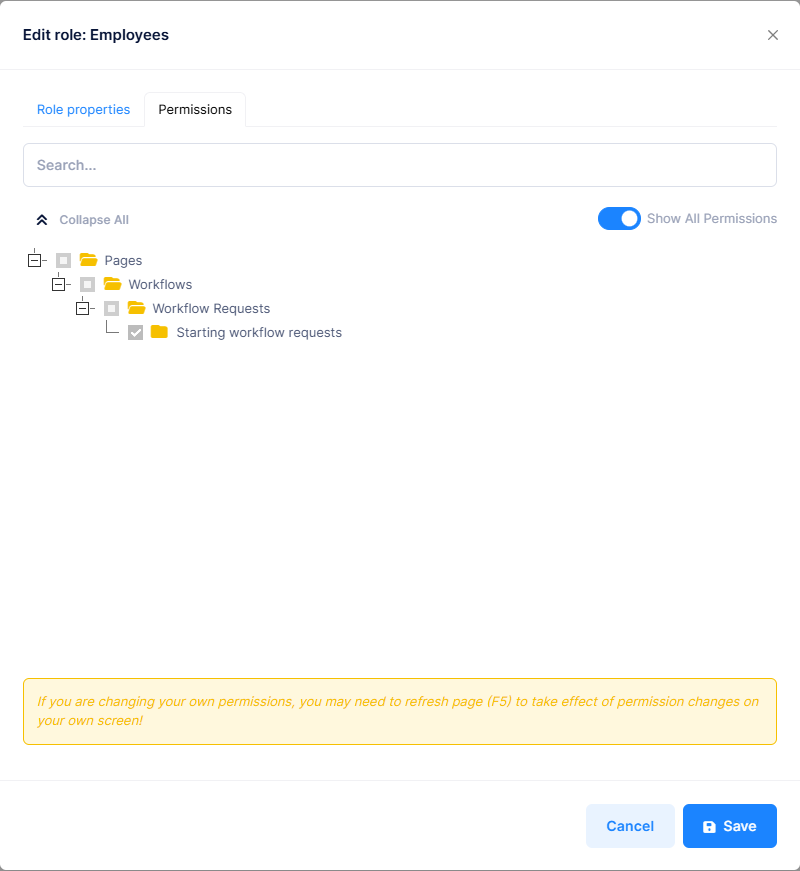
Go to Administration > Roles and create three roles. In the permission tree of each role, grant:
Role Permissions Employees Workflows > Workflow Requests > Starting workflow requests Team Leads Workflows > Approval Inbox > Acting on workflow tasks HR Workflows > Approval Inbox > Acting on workflow tasks Granting a permission also grants its parents, so Workflows, Workflow Requests and Approval Inbox are selected automatically.
Go to Administration > Users and create
alice,bobandcarol, assigning each the role in the table above.
An approver needs Acting on workflow tasks. With only Approval Inbox, the user sees their tasks but cannot decide on them.
By default, nobody can approve their own request. Use separate users for the requester and the approvers, and log in to each in a separate browser or private window.
Step 2: Create the workflow
- Go to Workflows > Workflow Administration > Workflow Definitions and click New workflow.
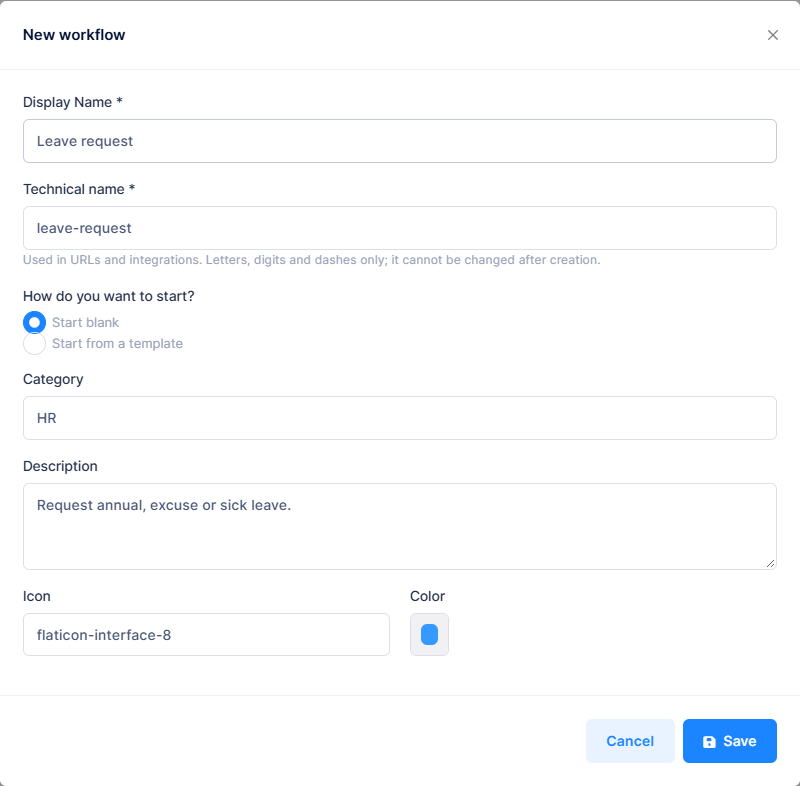
- Fill in the dialog:
- Display Name:
Leave request - Technical name: filled in from the display name, for example
leave-request. It may only contain lowercase letters, digits and hyphens, and cannot be changed later. - How do you want to start?: Start blank
- Category:
HR
- Display Name:
- Click Save.
The Workflow Designer opens with an empty canvas. It has four tabs: Flow, Form, Trigger and Simulation.
Step 3: Build the form
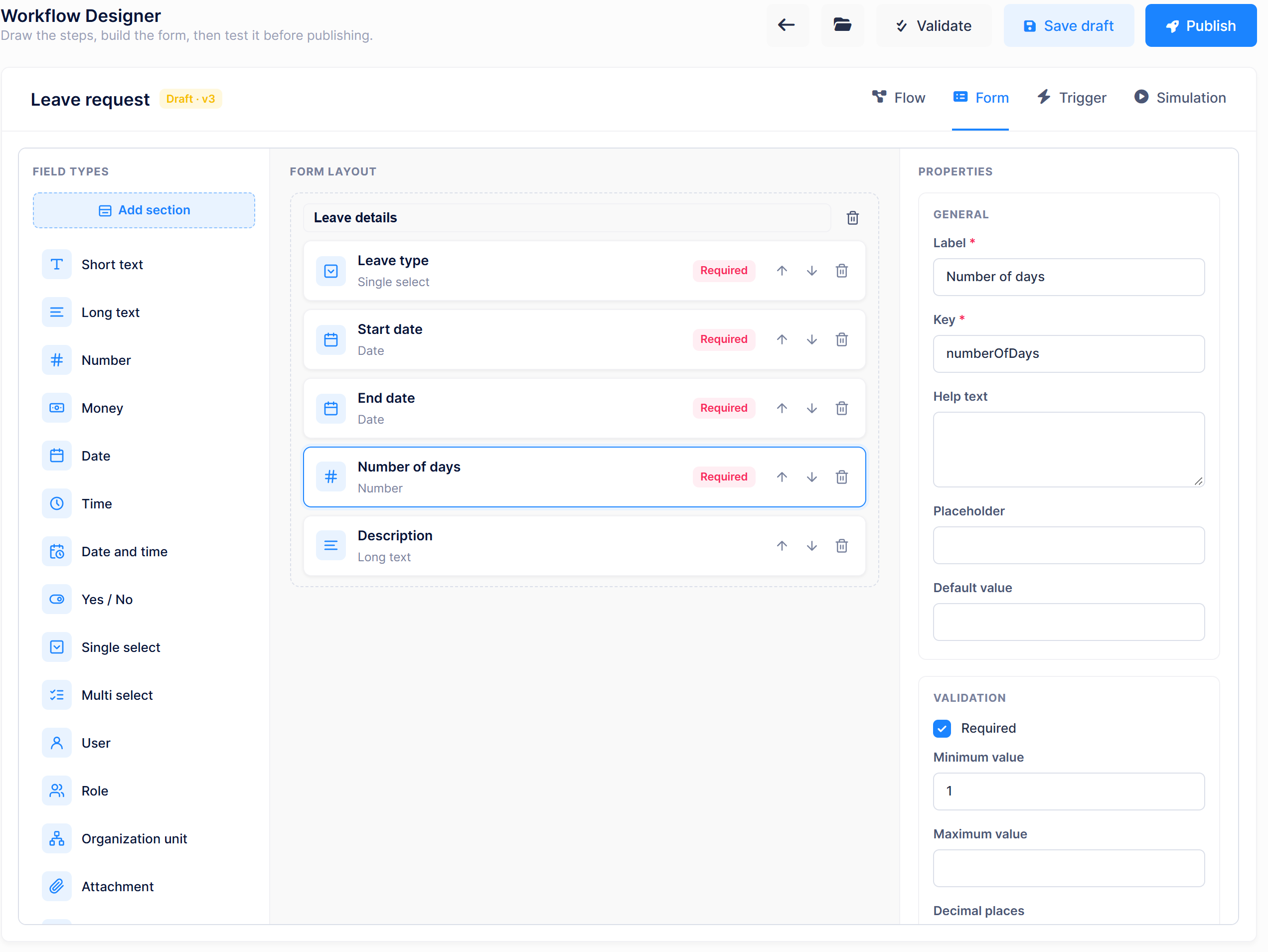
Open the Form tab. Click a field type in the Field types list to add it to the form, then set its properties in the Properties pane. Add these fields:
| Label | Field type | Key | Properties |
|---|---|---|---|
| Leave type | Single select | leaveType |
Options: Annual, Excuse, Sick (one per line). Required |
| Start date | Date | startDate |
Required |
| End date | Date | endDate |
Required |
| Number of days | Number | numberOfDays |
Required, Minimum value 1 |
| Description | Long text | description |
The Key identifies the field in conditions and integrations. Keep it short and stable. All fields go into one section; the screenshot below titles it Leave details.
Requesters can still attach files, such as a medical report, from the Workflow attachments section of the request page.
Step 4: Draw the flow
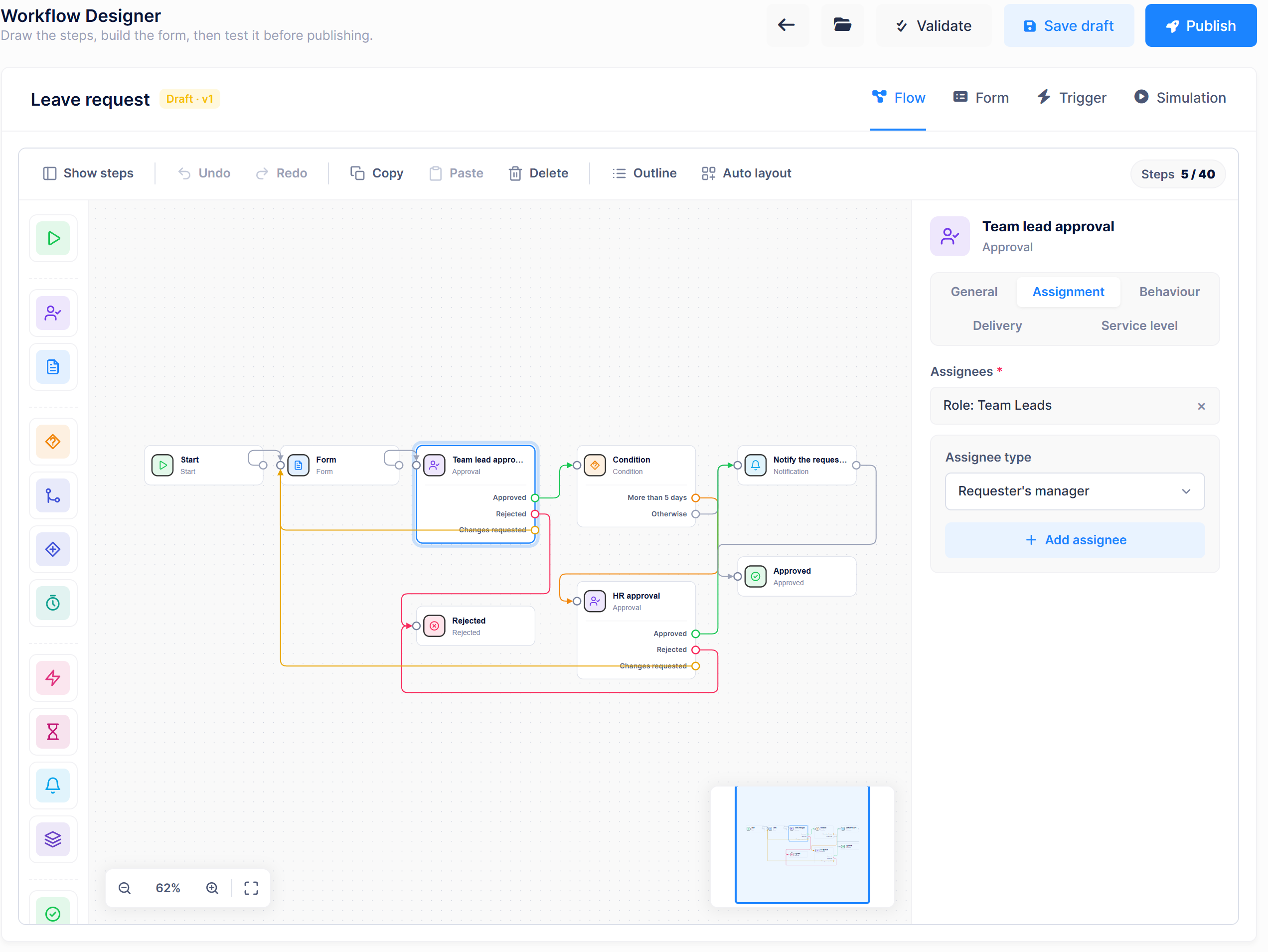
Open the Flow tab. The Steps palette on the left groups the step types. Click a step to add it to the canvas, or drag it onto the canvas. Select a step to edit it in the Properties panel on the right.
To connect two steps, drag from an output port (the circle on the right of a step, or the labeled row under it) to the input port of the next step (the circle on its left).
4.1 Add the steps
Add the following steps and rename them in the General tab of the Properties panel where shown:
| Palette group | Step | Name |
|---|---|---|
| Flow | Start | |
| Human tasks | Form | |
| Human tasks | Approval | Team lead approval |
| Control | Condition | |
| Human tasks | Approval | HR approval |
| Integration | Notification | Notify the requester |
| Outcomes | Approved | |
| Outcomes | Rejected |
4.2 Configure the team lead approval
Select Team lead approval.
- On the Assignment tab, under Assignees, choose Role as the assignee type, pick Team Leads and click Add assignee.
- On the Behaviour tab, keep the defaults:
- Decision policy: Anyone can decide. One team lead deciding is enough.
- Allow "request changes": on.
- Require a reason when rejecting: on.
- Optionally, on the Service level tab set Due in (minutes) to
2880(two days) and Reminder every (minutes) to1440.
4.3 Configure the condition
Select the Condition step and click Add branch. In the branch editor:
- Branch name:
More than 5 days - Field: Number of days
- Operator: Greater than
- Value:
5
The step now has two outputs: More than 5 days and Otherwise. The Otherwise output is taken when no branch matches, and it must be connected.
4.4 Configure the HR approval
Select HR approval. On the Assignment tab, add the Role HR as the assignee. Keep the other defaults.
4.5 Configure the notification
Select Notify the requester.
- On the General tab:
- Notification name:
LeaveApproved - Subject:
Your leave request was approved - Message:
Your request {businessReference} for {workflowName} was approved.
- Notification name:
- On the Delivery tab, keep Send as an in-app notification on. Turn on Also send an e-mail if e-mail is configured.
- On the Recipients tab, tick The requester.
The Subject and Message can contain placeholders in single braces, such as {workflowName} and {businessReference}. See Notification.
4.6 Connect the steps
Draw these connections:
| From step | Output | To step |
|---|---|---|
| Start | Form | |
| Form | Team lead approval | |
| Team lead approval | Approved | Condition |
| Team lead approval | Rejected | Rejected |
| Team lead approval | Changes requested | Form |
| Condition | More than 5 days | HR approval |
| Condition | Otherwise | Notify the requester |
| HR approval | Approved | Notify the requester |
| HR approval | Rejected | Rejected |
| HR approval | Changes requested | Form |
| Notify the requester | Approved |
Drag the steps to arrange the diagram, or click Auto layout in the canvas toolbar to line them up automatically.
Connecting Changes requested back to Form is required while Allow "request changes" is on. It is how a request returns to the requester for corrections.
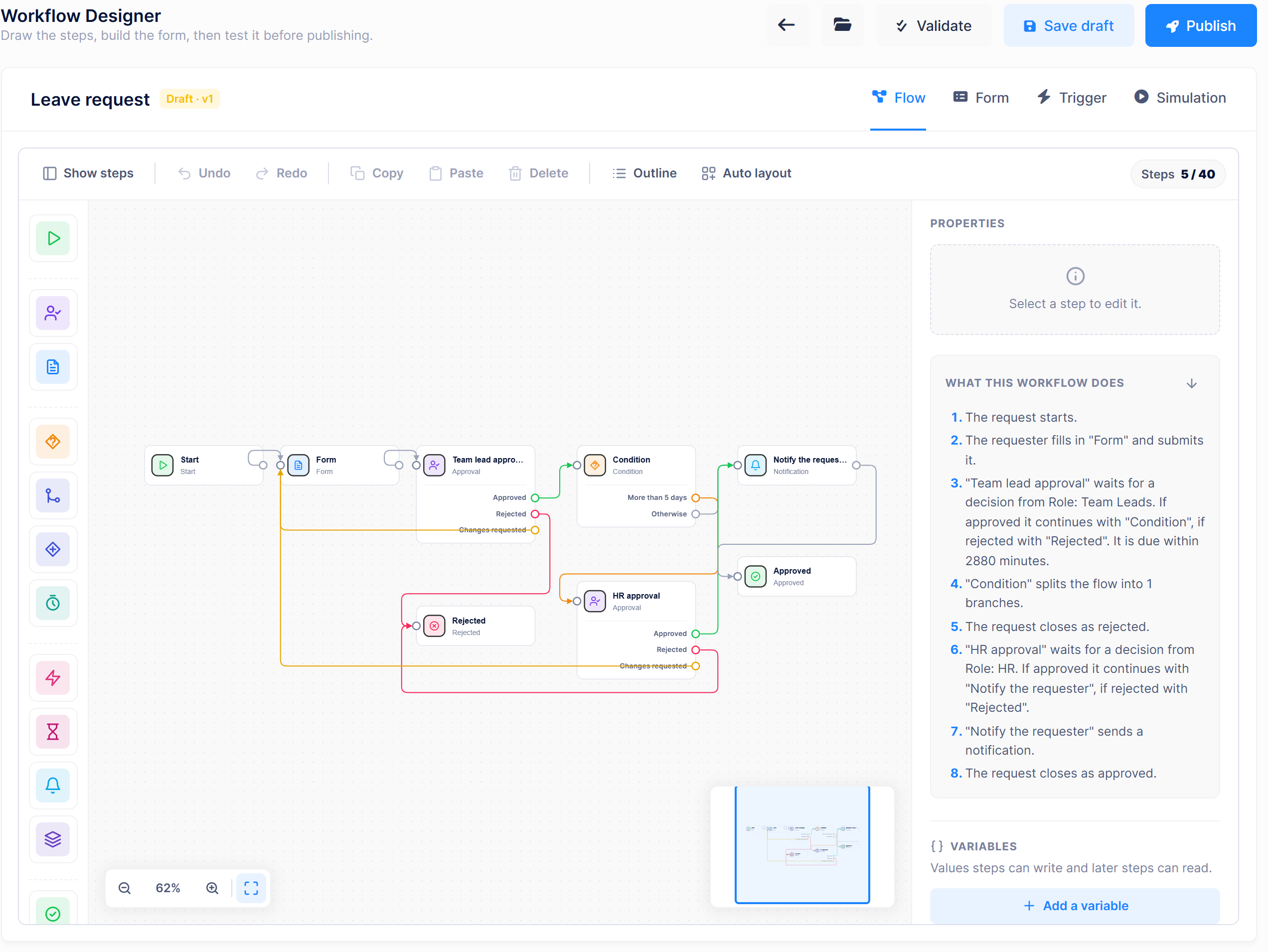
Step 5: Validate, test and publish
- Click Validate. When the flow is complete you see No problems found. The workflow is ready to publish. Otherwise, a list shows each problem with the name of the step it belongs to. Fix them and validate again.
- Optional but recommended: open the Simulation tab.
- Requester:
alice - Decisions per approval: Approve for both approvals
- Sample form values: Number of days =
7 - Click Run simulation. The result shows the path Team lead approval → HR approval → Notify the requester → Approved, with the assignees of each step. Run it again with
3days and the HR approval is skipped.
- Requester:
- Click Save draft.
- Click Publish and confirm. If there are unsaved changes, the button reads Save and publish and saves the draft before publishing.
The workflow now appears in Workflow Definitions with the status Active and version v1. It is listed in the Request Catalog for everyone who can start requests.
Step 6: Run the workflow
Alice requests seven days of leave
Log in as
aliceand go to Workflows > Start a Request.Click Start on the Leave request card. A draft request opens.
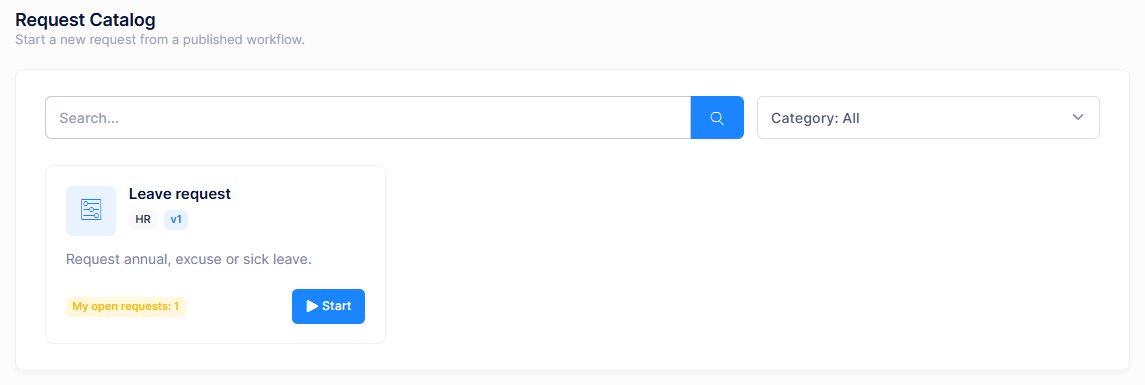
Fill in the form: Annual, a start and end date, Number of days =
7. Click Submit.The request is listed under Workflows > My Requests.
Bob asks for a correction
- Log in as
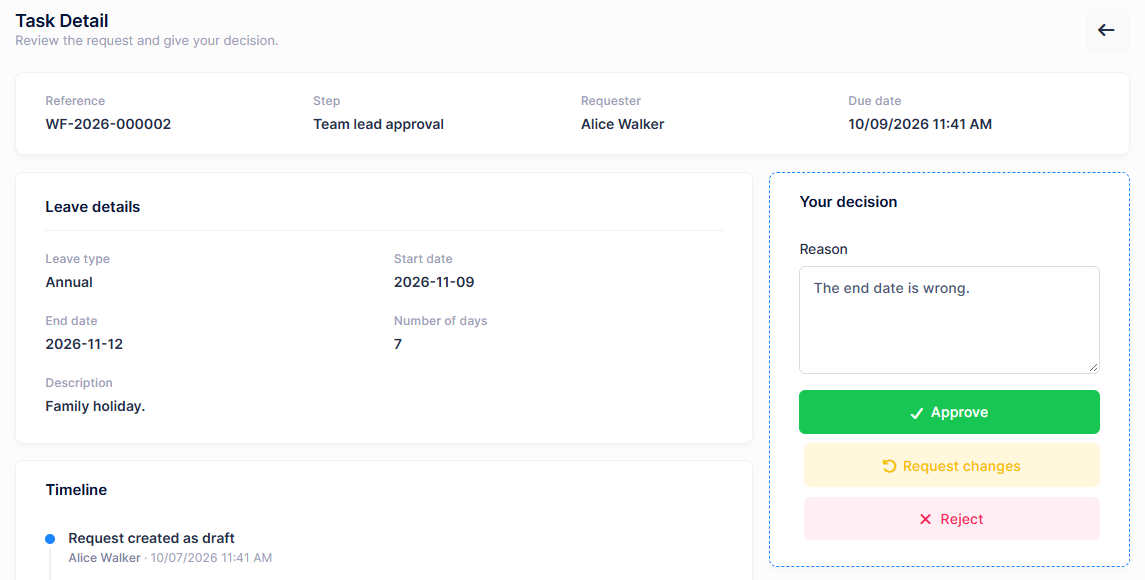
bob. A notification says a task was assigned. Go to Workflows > Approval Inbox and open the request. - The page shows the form values, the Timeline and the Your decision card. Enter
The end date is wrongas the Reason and click Request changes.
Alice corrects the request
- As
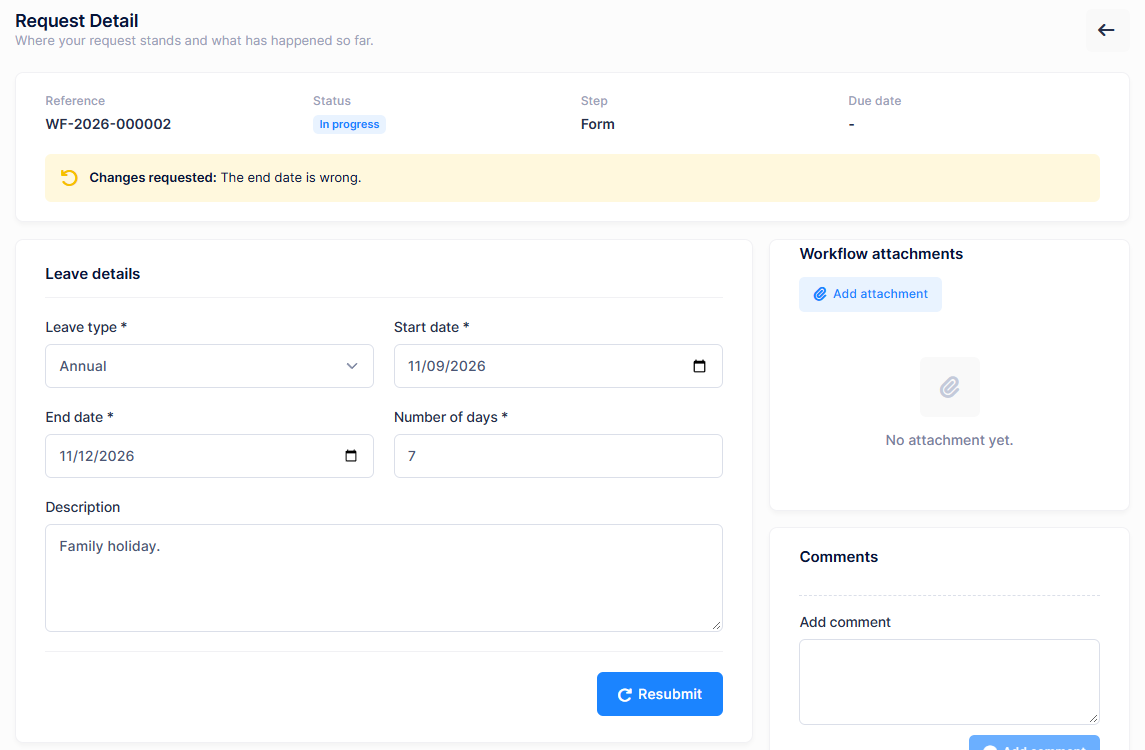
alice, open the request from My Requests. A Changes requested alert shows Bob's reason. - Correct the end date and click Resubmit.
Bob and Carol approve
- As
bob, open the task again and click Approve. Because 7 is greater than 5, the request moves to HR. - Log in as
carol. The task is in Approval Inbox. Open it and click Approve. - The request is closed as Approved and Alice receives the "Your leave request was approved" notification.
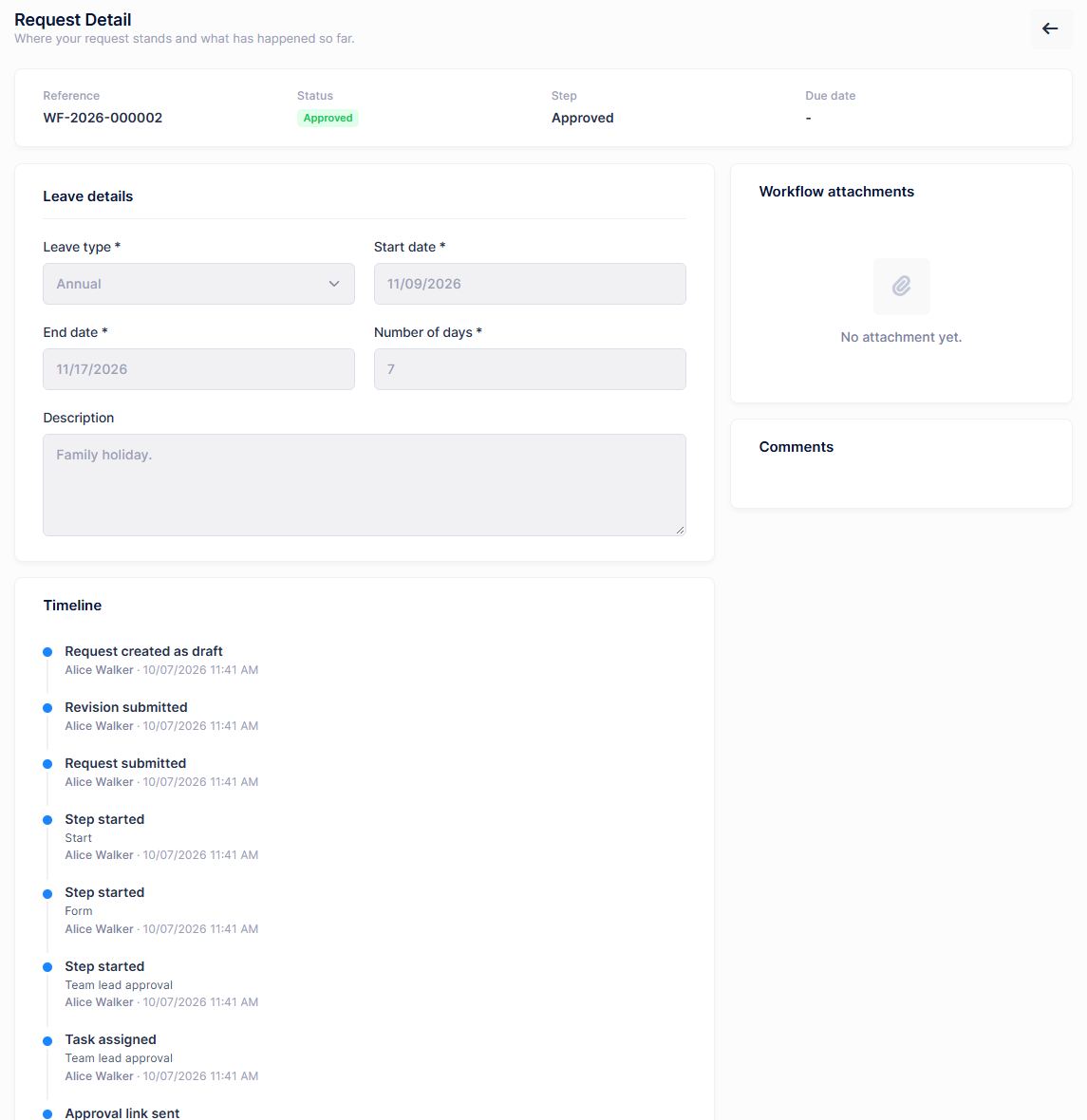
Open the request as alice and look at its Timeline: it lists every submission and decision with the person and the reason.
Try the other paths
- A short leave: Alice requests
3days. After Bob approves, the request is approved directly and Carol never sees it. - A rejection: Bob clicks Reject. A reason is required, and the request is closed as Rejected.
Next steps
- Change the workflow: open it in the designer, edit and publish again. The new version is used for new requests only. See Versions.
- Let Bob hand their tasks to a colleague during a holiday with Workflow Delegations.
- Save the workflow as a template with the Save as template button so others can start from it.
- Follow your requests in Workflow Instances and Process analytics. See Workflow Administration.