
Requests and Approvals
This document describes the workflow pages used every day by employees and approvers. All of them are under the Workflows menu.
| Page | Used by | Permission |
|---|---|---|
| Start a Request | Requesters | Workflow Requests > Starting workflow requests |
| My Requests | Requesters | Workflow Requests |
| Approval Inbox | Approvers | Approval Inbox > Acting on workflow tasks |
| Workflow Delegations | Approvers | Workflow Delegations |
Starting a request
Workflows > Start a Request opens the Request Catalog, which lists every published workflow that accepts new requests. Use the search box or the Category filter to find one.
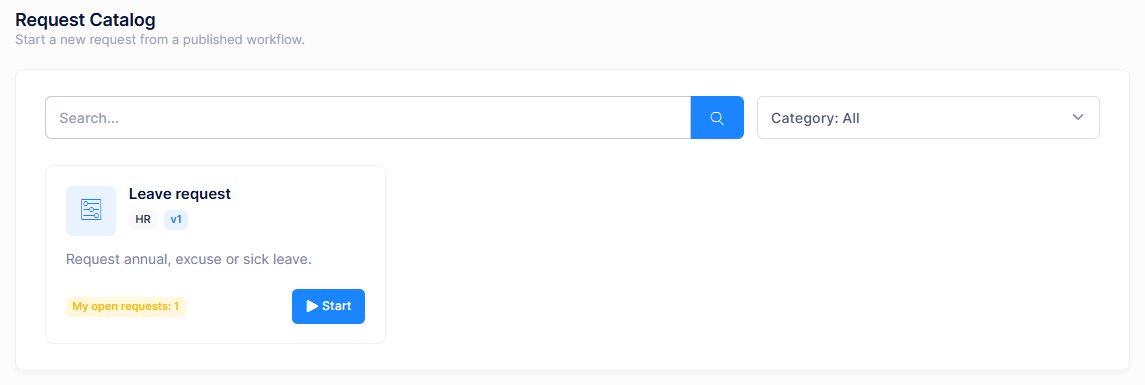
- Click Start on a workflow card. A draft request is created and its page opens. A My open requests badge on the card shows how many of your requests for that workflow are still open.
- Fill in the form. Use Save draft to continue later.
- Click Submit. If a field is invalid, the form shows Please correct the highlighted fields.
Every user with the start permission sees every published workflow in the catalog. To stop new requests for a workflow, an administrator chooses Suspend new requests or Retire on the Workflow Definitions page.
Following your requests
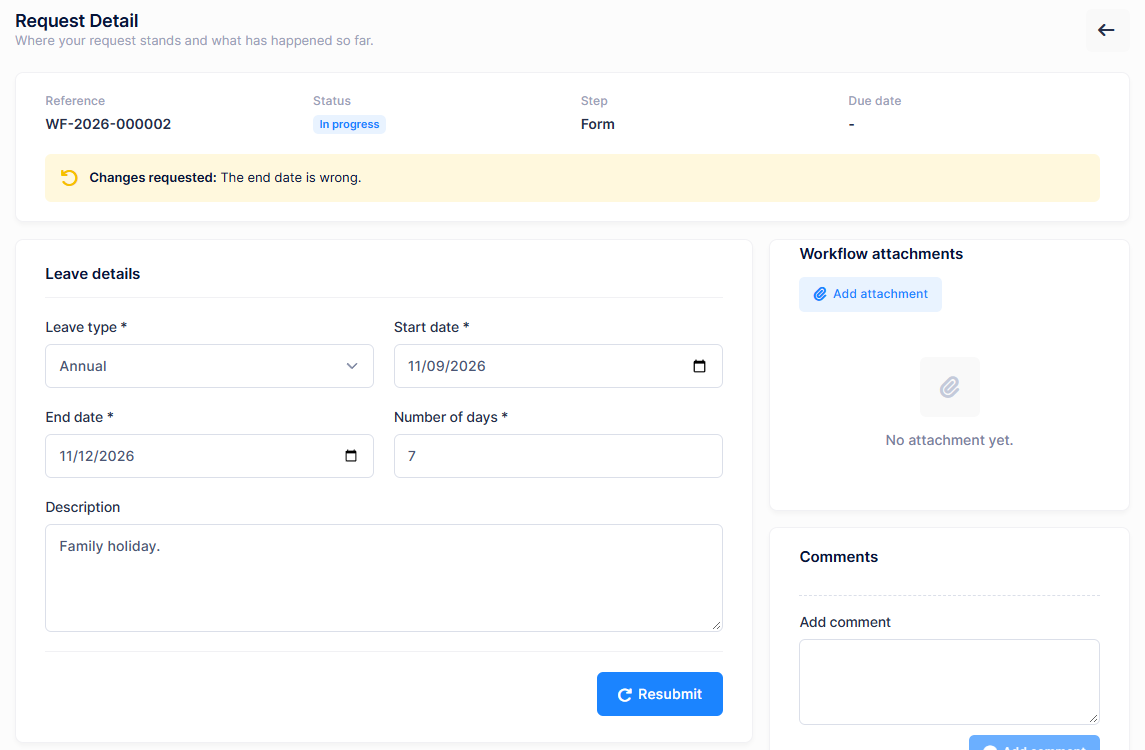
Workflows > My Requests lists the requests you started with their Reference, Title, Workflow, Status, current Step and Creation time. Open a request to see its page:
| Section | Description |
|---|---|
| Header | Reference, Status, current Step and Due date |
| Form | The values you submitted. Editable while the request is a draft or when changes are requested. |
| Timeline | Every submission, decision, reminder and escalation, with who and when |
| Workflow attachments | Files attached to the request. Use Add attachment to add more, if the step allows it. |
| Comments | A conversation with the approvers. Use Add comment. |
The buttons depend on the state of the request:
| Button | When |
|---|---|
| Save draft, Submit | The request is a draft. |
| Resubmit | An approver requested changes. A Changes requested alert shows their reason. |
| Withdraw | The request is in progress and the step allows withdrawal. Withdrawing cancels its pending tasks. Requires Withdrawing workflow requests. |
Deciding on tasks
Workflows > Approval Inbox lists the requests waiting for your decision.
- The cards at the top count Pending, Overdue, Due soon and Waiting for changes tasks. The Overdue switch filters the list.
- The list shows the Reference, Title, Step, Requester, Creation time and Due date. Badges mark tasks that are Delegated, Escalated, Overdue or Due soon.
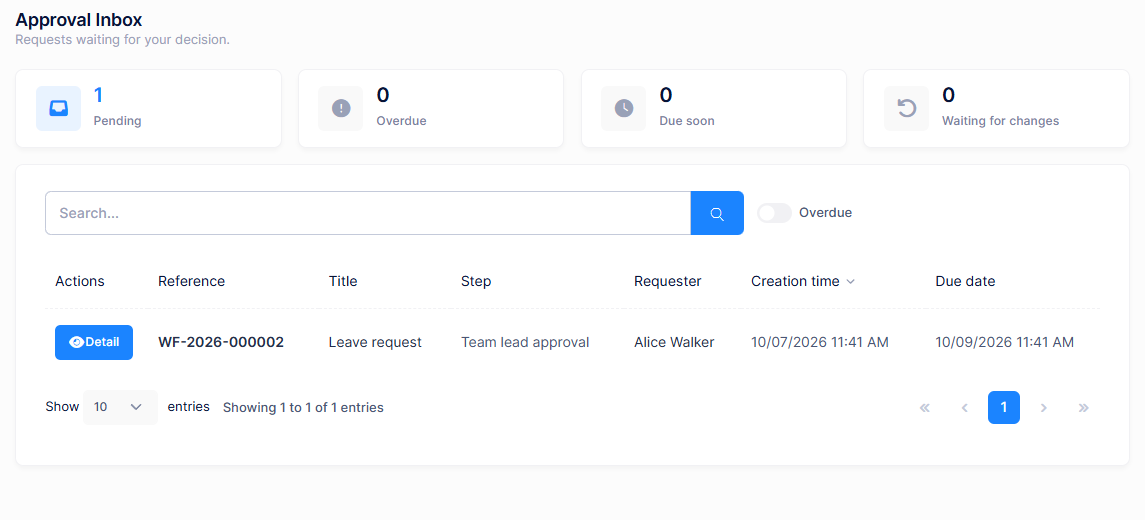
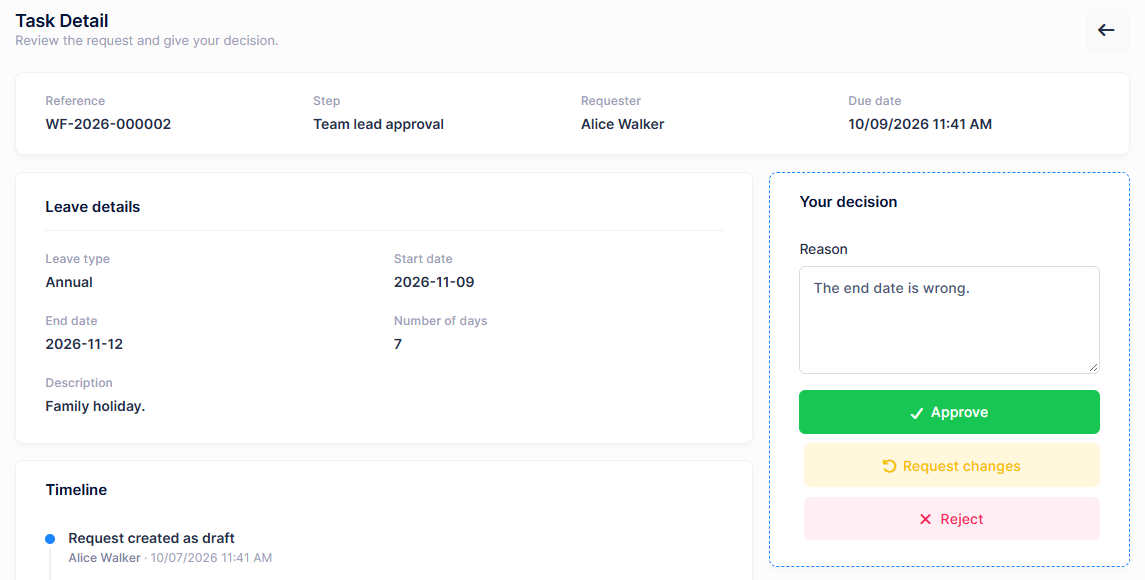
Click Detail to open a task. The page shows the request's form, timeline, attachments and comments, and the Your decision card:
| Button | Result |
|---|---|
| Approve | The request continues on the step's Approved path. With Everyone must approve or A quorum must approve, it continues once enough approvers have approved. |
| Reject | The request continues on the Rejected path, which usually closes it. |
| Request changes | The request goes back to the requester, who corrects it and resubmits. Only shown when the step allows it. |
Enter a Reason to explain your decision. The workflow designer decides when a reason is required; by default it is required when rejecting. Without one, you see A reason is required for this decision.
To decide, an approver needs Acting on workflow tasks in addition to Approval Inbox.
By default you cannot approve a request you started yourself. The tenant's Default self approval policy in Workflow Settings controls this.
Deciding outside the application
When enabled by the host and the tenant, approvers can also decide:
- From the approval email. The email contains approve and reject links. Opening a link shows a confirmation screen, and the decision is recorded only after it is confirmed. The links expire after the Approval link lifetime set in Workflow Settings.
- From a Microsoft Teams or Slack card, when the approval step delivers to a chat channel and allows deciding from the chat message. Each approver first links their chat account under My settings > Connected chat accounts.
Notifications
Requesters and approvers receive in-app notifications when a task is assigned, reassigned or completed, before and after it becomes due, when it is escalated or delegated, when changes are requested, and when the request is approved, rejected or cancelled. The Notification step of a workflow can send additional notifications and e-mails.
If the tenant turns on Send a daily reminder digest in Workflow Settings, approvers also receive a daily summary of their open tasks.
Delegations
Workflows > Workflow Delegations lets an approver hand their tasks to a colleague for a period of time, for example during a holiday.
- Click Create delegation.
- Search for the colleague and select them in Delegated to.
- Set the Start date and End date, optionally enter a Reason, and click Save.
While the delegation is active, the colleague sees your tasks from approval steps that allow delegation in their own Approval Inbox, marked with a Delegated badge, and can decide on them on your behalf. The tasks stay assigned to you. A delegation created from this page applies to all workflows.
The list can be filtered with Delegated by me or Delegated to me and Only active. Its Status column shows Not started yet, Active, Ended or Revoked. Use Revoke to end a delegation early.