
Workflow Designer
The Workflow Designer is where a workflow definition is built. Open it by creating a workflow in Workflows > Workflow Administration > Workflow Definitions, or by choosing Design from the Actions menu of an existing workflow.
If you have not built a workflow before, start with Create Your First Workflow.
Creating a workflow
Click New workflow on the Workflow Definitions page.
| Field | Description |
|---|---|
| Display Name | The name shown to users, up to 128 characters. |
| Technical name | Used in URLs and integrations. Lowercase letters, digits and hyphens only. It is filled in from the display name and cannot be changed after creation. |
| How do you want to start? | Start blank, Start from a template (then pick a template; the first option is Empty workflow), or Describe and create, which drafts the workflow with AI and is only shown when AI authoring is available. |
| Category | Free text used to group workflows in the catalog. Existing categories are suggested. |
| Description | Up to 512 characters, shown on the catalog card. |
| Icon, Color | How the workflow appears in the catalog. |
The Edit dialog also has Responsible user. This user is used as the requester when a workflow starts without a person, which is required for scheduled and public form workflows.
Designer layout
The page header shows the workflow name and its state, for example Draft · v3 or Published · v2, and an Unsaved changes badge while you have edits. The header buttons are:
| Button | Description |
|---|---|
| Back | Returns to the definitions list. |
| Save as template | Saves the current design as a template others can start from. |
| Validate | Runs the full publish check and lists every problem. |
| Save draft | Saves the draft. Requires the Editing workflow definitions permission. |
| Publish | Publishes the draft as the active version. Requires Publishing workflow definitions. While there are unsaved changes, the button reads Save and publish and saves the draft first. |
The designer has four tabs: Flow, Form, Trigger and Simulation.
Form tab
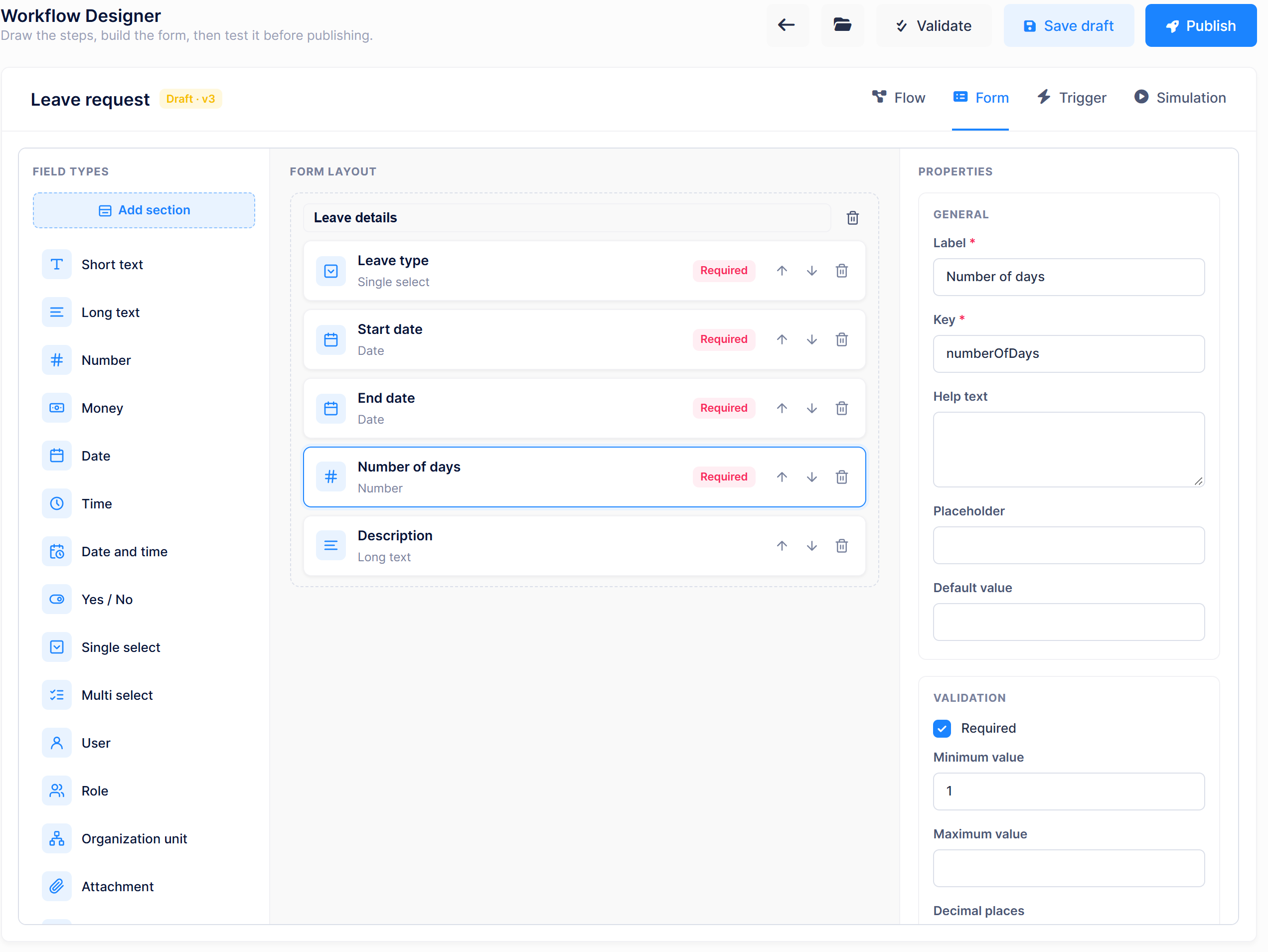
The form is what the requester fills in. The tab has three panes: Field types, Form layout and Properties.
- Click a field type to add a field. Use Move up, Move down and Remove field on each row.
- Click Add section to split a long form into sections. A Section setting appears on each field once the form has more than one section.
Field types
Short text, Long text, Number, Money, Date, Time, Date and time, Yes / No, Single select, Multi select, User, Role, Organization unit, Attachment, Static text, Repeating rows and Calculated.
- Attachment is only offered for workflows that have a public form, and only when attachments are allowed by the host. Signed-in requesters attach files in the Workflow attachments section of the request page instead.
- Static text shows text to the requester without asking for input.
- Repeating rows lets the requester add several rows, each with its own Row fields, for example the lines of an expense claim.
- Calculated computes a value from other fields with an Operation (Sum, Subtract, Multiply, Average, Smallest, Largest, Count) over Source fields.
In this version, the request page cannot yet be filled in for User, Role, Organization unit and Repeating rows fields. They can be designed, but the request page shows This field type cannot be edited here yet. for them. Until this is supported, use the request page's Workflow attachments section for files, and the other field types for the remaining data.
Field properties
| Group | Properties |
|---|---|
| General | Label, Key, Help text, Placeholder, Default value. Options (one per line) for select fields, Currency code for Money. |
| Validation | Required, and by type: minimum and maximum length, Pattern, minimum and maximum value, Decimal places, earliest and latest date, minimum and maximum selections, maximum file count and size, Allowed file extensions, minimum and maximum rows. |
| Layout | Column span (1-12, default 12), Read-only, Contains sensitive data. |
The Key identifies the field in conditions, notifications and integrations. Choose it carefully and avoid changing it after the workflow is in use.
Flow tab
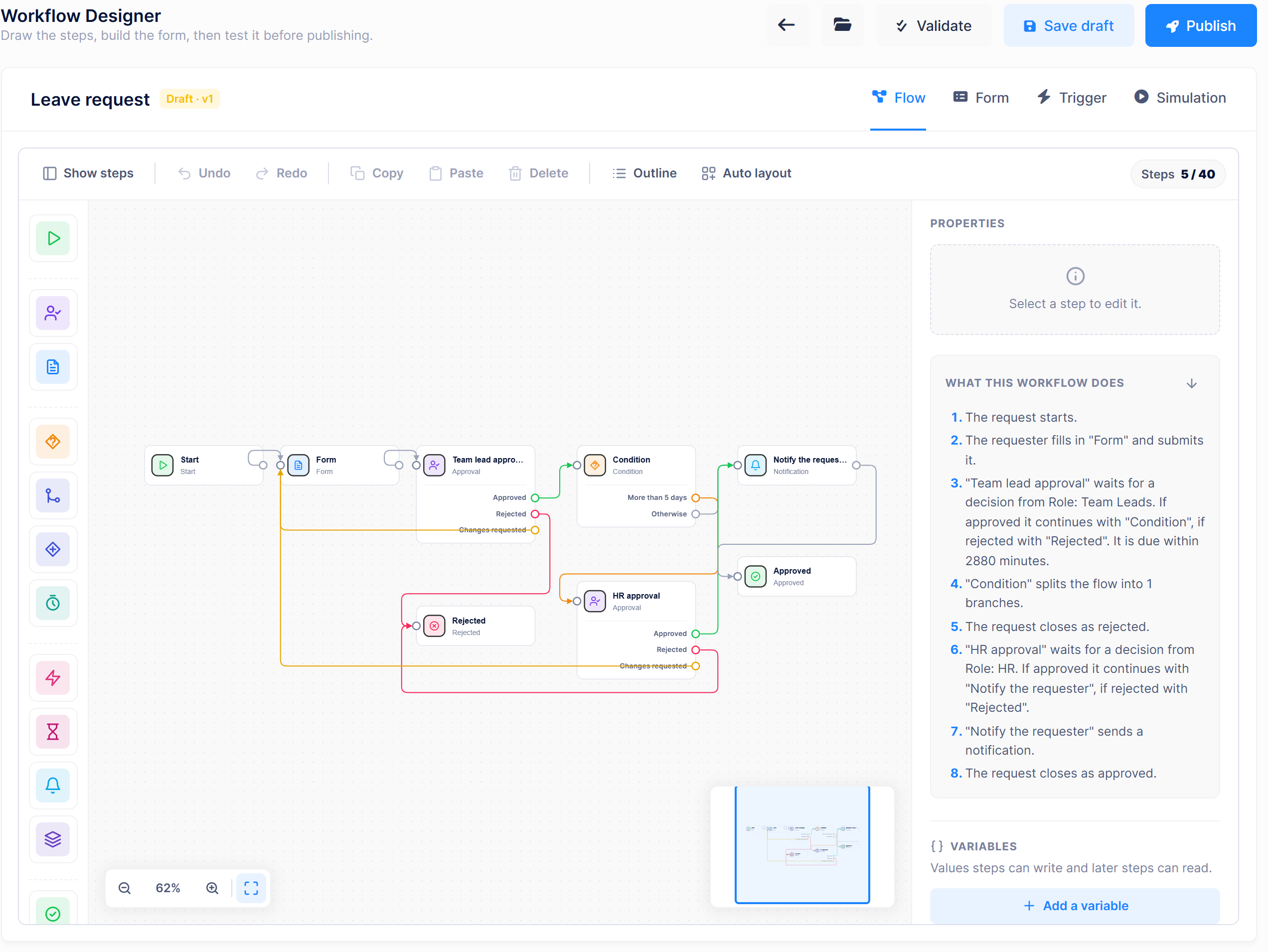
The flow is the path a request takes. It is drawn on a canvas.
Adding and connecting steps
- The Steps palette groups step types into Flow, Human tasks, Control, Integration and Outcomes. Use Search steps to filter it. Click a step to add it near the centre of the canvas, or drag it to a position.
- A workflow has exactly one Start step.
- To connect steps, drag from an output port to the input port (the circle on the left) of the target step. A step with one outcome has a single port on its right. A step with several outcomes shows one labeled row per outcome.
- Each outcome takes one connection. A step cannot connect to itself, and nothing can connect into Start.
Step outcomes
| Step | Outcomes |
|---|---|
| Start, Form, Notification, Action, Join, Slack, Teams, AI agent | One output |
| Approval | Approved, Rejected, Changes requested |
| Condition | One per branch, plus Otherwise |
| Parallel | Parallel branch 1, Parallel branch 2, … |
| Timer | After delay |
| Subprocess | Completed, Rejected |
| Wait for event | Event received, Event timed out |
| Approved, Rejected, Cancelled | None. They end the request. |
Editing steps
Select a step to edit it in the Properties panel on the right. The General tab always has Name and Description, the step's connections and a Remove step button. Other settings are grouped in tabs such as Behaviour, Assignment, Delivery, Recipients, Mapping and Service level.
With nothing selected, the panel shows What this workflow does, a plain-language summary of the flow.
To delete a connection, click it and choose Remove connection, or use the × next to it in the step's connection list. Deleting a step also deletes its connections.
Canvas toolbar and shortcuts
The toolbar has Undo, Redo, Copy, Paste, Delete, Outline (a list view of the steps), Auto layout and a Steps N / max counter for the step limit. Zoom controls and a minimap are at the bottom.
| Shortcut | Action |
|---|---|
| Ctrl+Z / Ctrl+Y | Undo / redo |
| Ctrl+C / Ctrl+V / Ctrl+D | Copy / paste / duplicate |
| Del or Backspace | Delete the selection |
| Ctrl+A / Esc | Select all / clear the selection |
| Shift+drag | Select with a box |
| Ctrl+mouse wheel | Zoom |
Step reference
Some steps depend on capabilities the host turns on in Administration > Settings > Workflows. Steps whose capability is off are not listed in the palette, or fail validation.
| Step | Requires |
|---|---|
| Parallel, Join, Subprocess, and the Everyone / Quorum decision policies | Allow advanced approvals (on by default) |
| Action | Allow external actions (off by default) |
| Wait for event | Allow workflows to wait for external events (off by default) |
| Send a Slack message / Send a Teams message | Slack / Teams notifications (off by default) |
| AI agent | AI agents configured in the tenant |
Start
Where every request enters the workflow. It has no settings of its own. How requests are started is set on the Trigger tab.
Form
The requester fills in and submits the form. A workflow must have a Form step, and the Changes requested outcome of an approval usually returns to it.
| Tab | Setting | Default |
|---|---|---|
| General | Read-only fields: form fields the requester cannot change at this step | none |
| Behaviour | Allow attachments | on |
| Behaviour | Allow the requester to withdraw | on |
| Service level | See Service level |
Approval
Assigns a decision to people, roles or organization units.
Assignees
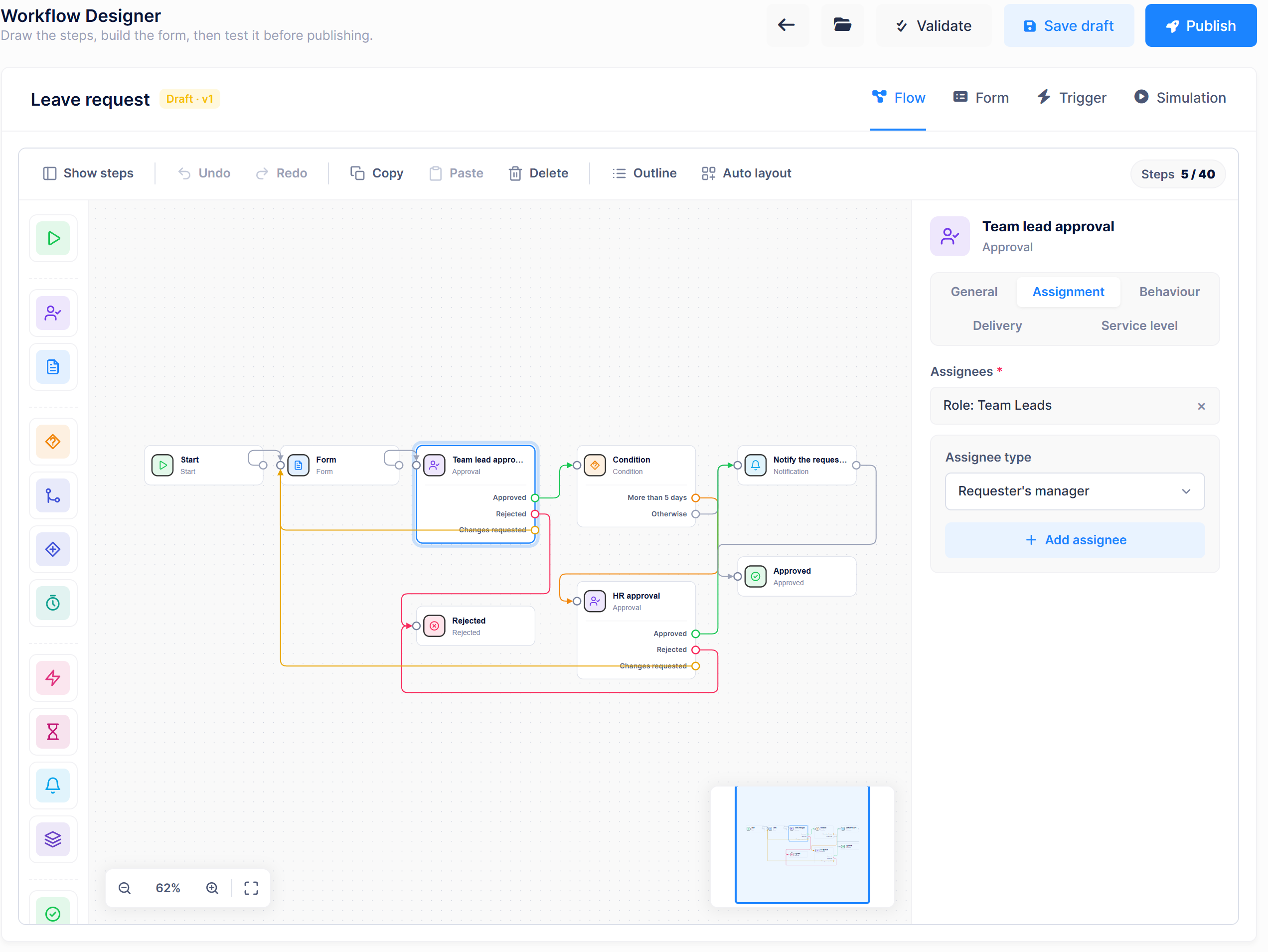
On the Assignment tab, choose an Assignee type, pick the user, role or organization unit, and click Add assignee. Add as many as you need.
| Assignee type | Who decides |
|---|---|
| Requester's manager | The manager of the user who started the request. |
| User | A specific user. |
| Role | Every user in the role. |
| Organization unit | Every user in the organization unit and its child units. |
| Fallback role | Every user in the role, added as approvers along with the other assignees. Operators can also bring it in with Activate Fallback Assignee on the Workflow Operations page. |
Requester's manager resolves from manager relationships stored for the tenant's users. This version does not include a screen for maintaining them, so populate them from your own code or integration, or also add a Role or Fallback role assignee so the task always has someone who can decide. Use Simulation to check who each step resolves to.
Behaviour
| Setting | Description | Default |
|---|---|---|
| Decision policy | Anyone can decide: the first decision counts. Everyone must approve: every assignee must approve. A quorum must approve: the number in Required approvals must approve. The last two need advanced approvals. | Anyone can decide |
| Allow delegation | Lets a colleague the approver has delegated to decide on the task. | on |
| Allow "request changes" | Shows the Request changes button. When on, the Changes requested outcome must be connected, usually back to the Form step. | on |
| Require a reason when rejecting | on |
Whether a requester may approve their own request follows the tenant's Default self approval policy. See Workflow Settings.
Delivery
Channels also delivers the task to Microsoft Teams or Slack, using a Connection profile. Allow approve and reject from the chat message lets approvers decide from the chat card. These options require the channels to be enabled by the host and in the tenant's workflow settings.
Service level
Form and Approval steps have a Service level tab:
| Setting | Description |
|---|---|
| Due in (minutes) | When the task becomes overdue. |
| Use the business calendar | Counts only working hours and days from the tenant's business calendar. |
| Reminder every (minutes) | Sends a reminder this many minutes after the task starts, if that is before the due time. |
| Escalate when overdue, Escalate after (minutes), Escalate to | Adds the Escalate to assignees to the task Escalate after minutes after it becomes overdue. The original assignees keep the task, and the new assignees are notified. |
Condition
Takes a different path per branch, based on form values.
Click Add branch and define the branch in its editor:
- Branch name: the label of the branch's outcome.
- Field: a form field or a workflow variable.
- Operator and Value. The operators depend on the field type:
| Field type | Operators |
|---|---|
| Number, Money, Date, Time, Date and time, Calculated | Equals, Does not equal, Greater than, Greater than or equal to, Less than, Less than or equal to, Is empty, Is not empty |
| Yes / No | Equals, Does not equal, Is empty, Is not empty |
| Multi select, User, Role, Organization unit, Attachment | Contains, Does not contain, Is one of, Is not one of, Is empty, Is not empty |
| Text and other types | Equals, Does not equal, Contains, Does not contain, Is one of, Is not one of, Is empty, Is not empty |
For Is one of and Is not one of, enter the values separated by commas.
Branches are evaluated from top to bottom and the first matching branch is taken; use Move up and Move down to order them. The Otherwise outcome is taken when no branch matches and must always be connected. When AI authoring is available, you can also describe a rule in your own words and click Suggest a condition.
Parallel and Join
Parallel starts several branches at the same time, for example a finance and a legal review. Join waits for them before the flow continues.
- Parallel: Join step, Cancel the other branches when one is rejected (on by default).
- Join: Parallel step, Join mode (Wait for every branch, Continue on the first branch or Wait for a number of branches) and Required branches.
Timer
Holds the request for a while.
- Timer mode: Wait for a duration with Wait for (minutes); Wait until a form date with Date field and Offset (minutes); or Wait until a fixed date.
- Use the business calendar (off by default).
Notification
Sends an in-app notification or an e-mail.
| Tab | Setting | Description |
|---|---|---|
| General | Notification name | Required. A name that identifies this notification, for example LeaveApproved. |
| General | Subject, Message | The text of the notification. |
| Delivery | Send as an in-app notification | On by default. |
| Delivery | Also send an e-mail | Off by default. |
| Delivery | Channels | Also posts to Teams or Slack. |
| Recipients | Recipients | Tick The requester and/or Approvers of the earlier steps, and add People, roles or units. |
Subject and Message can contain these placeholders: {workflowName}, {businessReference}, {stepName}, {workflowInstanceId}, {requesterUserId}, {workflowDefinitionId}, {workflowDefinitionVersionId}, {workflowRevisionId}.
Action
Calls a registered application action or an outbound webhook. Available when external actions are allowed.
- General: Action kind (a registered action, an outbound webhook or an HTTP connection profile) and its settings.
- Behaviour: Timeout (seconds), Max attempts, Continue when the action fails.
- Mapping: Action inputs, which fill the action's parameters from form values.
The actions a tenant can use are managed in Action catalog. HTTP calls use the endpoints and credentials in Connection profiles and Workflow secrets.
Subprocess
Starts another published workflow and optionally waits for it. Settings: Workflow, Wait until the subprocess finishes, Outcomes (Continue on a single outcome or Branch on the sub-workflow outcome), Cancel the subprocess when this request is cancelled and Input mapping.
Wait for event
Holds the request until an external system reports back, for example a payment confirmation. Events are defined in Workflow events. Settings include Event, Match the event by, Correlation field, Give up after (minutes), When it times out, Payload mapping and Waiting message.
Slack and Teams messages
Send a Slack message and Send a Teams message post a message as a step of their own: Connection, Channel, Title, Message, Importance, Include a link to the request and Fields to show.
Approved, Rejected and Cancelled
Close the request with that outcome. A workflow must contain an Approved and a Rejected step.
Trigger tab
Start type decides how requests are started:
| Start type | Description |
|---|---|
| Manual | Users start requests from the Request Catalog. This is the default. |
| Scheduled | Requests start automatically, for example every Monday at 09:00. Requires Allow scheduled start from the host and a Responsible user on the workflow. |
| Public form | People outside the organization submit requests through a public link. Requires Allow public forms from the host and a Responsible user on the workflow. |
Trigger is active turns the trigger on or off. The Trigger tab only works after a Start step has been added.
For a scheduled trigger, set Repeats, Every, Days of the week or Day of the month, Time, Time zone, what to do If it falls on a non-working day, and What happens when it runs: Create a draft request for the responsible user or Submit automatically using default values. Automatic submission requires every required field to have a default value. Next runs previews the upcoming runs.
For a public form, set the Public form address, Require captcha verification, Verify the submitter email address and Allow file attachments.
Validation
Validate runs the same checks as publishing. Each problem names the step or field it belongs to. The most common ones for a new workflow are:
| Problem | Fix |
|---|---|
| The flow has no steps yet | Add steps from the palette. |
| No Form step, or no Approved / Rejected result step | Add the missing step. Every workflow needs Start, Form, Approved and Rejected. |
| Nobody is assigned to decide | Add an assignee on the approval's Assignment tab. |
| The "Changes requested" output of this step is not connected | Connect it back to the Form step, or turn off Allow "request changes". |
| The condition step must have an otherwise path / A condition branch has no outgoing connection | Connect the condition's Otherwise outcome and every branch. |
| The workflow contains a loop | Remove the connection that leads back to an earlier step. Only Changes requested may return to the Form step. |
| A step requires a feature | The step depends on a capability the host has not turned on. |
Simulation tab
Simulation runs the workflow without creating a request. Choose a Requester, a Priority, a decision for each approval under Decisions per approval, and enter Sample form values, then click Run simulation.
The Result shows the path the request takes, who each step is assigned to, due dates and escalation times. It warns when No assignee resolves for this step or when The requester would approve their own request here. Run a simulation for each path before publishing.
Drafts, versions and publishing
- You always edit a draft. Save draft stores it after a light check.
- Publish validates the draft again, makes it the new active version and retires the previous one. Requests that are already running continue on the version they started with.
- A published version opens read-only. The next edit creates a new draft from it.
- Version history in the Actions menu lists every version.
Managing workflows
The Actions menu on the Workflow Definitions page offers, depending on your permissions and the host settings:
| Action | Description |
|---|---|
| Design / Edit | Open the designer / edit the name, category and other details. |
| Suspend new requests / Resume new requests | Temporarily stop new requests without affecting running ones. |
| Publish | Publish the current draft without opening the designer. |
| Public form | Configure the public link of the workflow. |
| Version history, Version migration | List versions; move running requests to a newer version (when allowed by the host). |
| Export as BPMN, Export as Elsa JSON, Import from BPMN | Exchange workflows with other tools. Import replaces the workflow's draft; the published version is not touched. |
| Retire | Permanently stop the workflow from being used. |
Templates
Click Save as template in the designer to save a design as a template. Templates are listed in Workflows > Workflow Administration > Workflow Templates, where they can be previewed, used with Use this template, or deleted (templates saved by your tenant only). They are also offered in the Start from a template option of the New workflow dialog.
Every tenant starts with the product templates Leave request, Expense claim and Purchase request. They can be used but not deleted. Their approval steps have no approvers until you assign them.