
Power Tools Custom Code - Angular
ASP.NET Zero Power Tools generates code that can be fully regenerated whenever you change an entity. The Custom Code feature lets you add your own code to the generated pages and classes so that your additions survive regeneration.
This page covers how Custom Code works in Angular projects. For other UI frameworks, see Custom Code - MVC and Custom Code - React. For the MAUI mobile app, see Custom Code - MAUI.
Enabling Custom Code
Open Power Tools, select your entity, and turn on the Generate Overridable Entity switch in the Entity Information section.
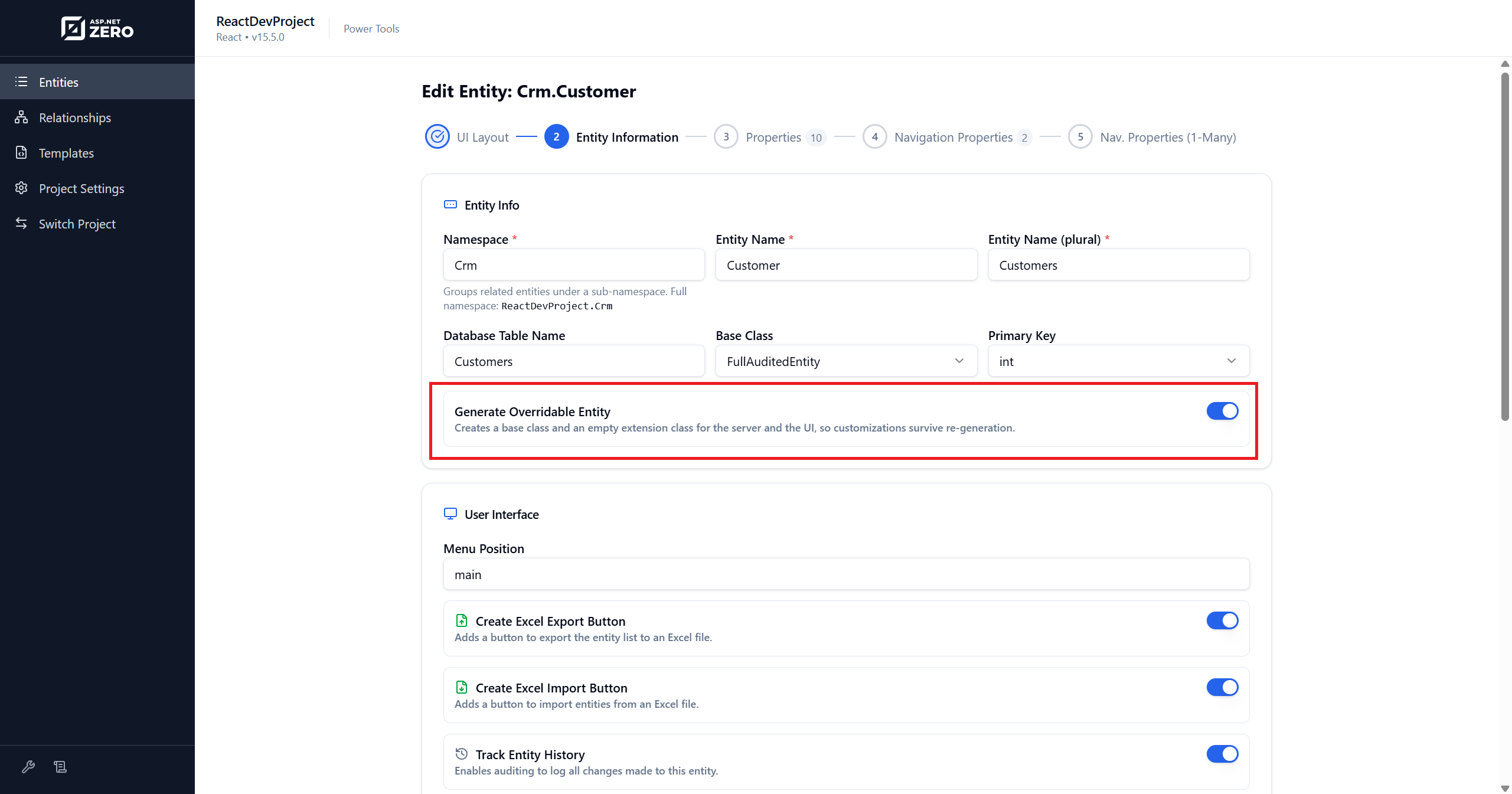
When this switch is on, Power Tools generates additional extension files that you own. These files are created once and never overwritten, even when you regenerate the entity.
The switch affects both the server side and the client side.
Requirements
Project version. The Angular component split ships with the ng-zorro template set, which Power Tools uses
for v15.5+ projects. On v15.3-v15.4 (PrimeNG templates) and older (module-based templates) the switch
still generates the server-side extension files, but no .component.base.ts split and no az:begin slots in
the HTML.
Limitations
Master-detail child entities. The switch has no effect on the server layer of a child entity in a master-detail pair - none of the server-side extension files are generated for it. On the client, a child entity gets the split for its detail/view component only; the list page and create/edit components are generated for the parent, not the child.
How It Works
Angular uses two complementary mechanisms to preserve your code during regeneration:
| Mechanism | How It Works | Applies To |
|---|---|---|
| Extension files (SkipIfExists) | A base class is regenerated every time. A developer-owned subclass is generated once and never overwritten. You override methods or add logic in the subclass. | Server-side C# files and Angular TypeScript components |
Preserved region slots (az:begin / az:end) |
Named regions inside regenerated HTML templates. Power Tools preserves any markup you place between the markers. | Angular component HTML templates |
Server Side
When Generate Overridable Entity is enabled, the following server-side extension files are generated. These are shared across all UI frameworks.
Power Tools splits each generated class in two: the generated half keeps the original file name and gains a
Base suffix on the class name, and your half is a new .Extended.cs file holding a subclass at the
original class name. Existing references keep resolving to your class, so nothing else in the solution has to
change.
For a Product entity, the generated files are:
| Your file (never overwritten) | Regenerated file | Purpose |
|---|---|---|
ProductsAppService.Extended.cs |
ProductsAppService.cs |
Override application service methods |
IProductsAppService.Extended.cs |
IProductsAppService.cs |
Extend the service interface |
Product.cs |
ProductBase.cs |
Add custom properties or methods to the entity |
CreateOrEditProductDto.Extended.cs |
CreateOrEditProductDto.cs |
Extend the input DTO |
ProductDto.Extended.cs |
ProductDto.cs |
Extend the list DTO |
GetAllProductsInput.Extended.cs |
GetAllProductsInput.cs |
Add custom filter parameters |
GetAllProductsForExcelInput.Extended.cs |
GetAllProductsForExcelInput.cs |
Add custom Excel export filter parameters |
GetProductForViewDto.Extended.cs |
GetProductForViewDto.cs |
Extend the view/list output DTO |
GetProductForEditOutput.Extended.cs |
GetProductForEditOutput.cs |
Extend the edit output DTO |
ProductXLookupTableDto.Extended.cs |
ProductXLookupTableDto.cs |
Extend the lookup DTO for navigation property X |
ProductsController.Extended.cs |
ProductsController.cs |
Extend the Web.Host API controller |
The entity is the one exception to the naming pattern. Because EF Core maps the class by name, the file is renamed rather than the class:
ProductBase.csis regenerated, andProduct.csis yours and is never overwritten. Do not expect aProduct.Extended.cs, and do not treatProduct.csas generated.
Each .Extended.cs file contains:
// Write your custom code here.
// ASP.NET Zero Power Tools will not overwrite this class
// when you regenerate the related entity.
The base files (without .Extended) are fully regenerated on every run. New entity properties automatically flow into them. Your customizations in the extension files are preserved because Power Tools never touches them after the first generation.
Angular TypeScript - Extension Files
When you enable Generate Overridable Entity, each Angular component is split into two TypeScript files:
| Generated File | Description |
|---|---|
*.component.base.ts |
Abstract base class with all generated logic. Regenerated every time. |
*.component.ts |
Your subclass that extends the base. Generated once, never overwritten. |
This pattern applies to all component types:
- Page component -- the list page
- Create/edit component -- modal, full page, or offcanvas variant
- Detail/view component -- modal or full page variant
Example for a Product Entity
products.component.base.ts                         ← regenerated (abstract base)
products.component.ts                               ← yours (extends ProductsComponentBase)

create-or-edit-product-modal.component.base.ts      ← regenerated
create-or-edit-product-modal.component.ts            ← yours

view-product-modal.component.base.ts                ← regenerated
view-product-modal.component.ts                      ← yours
Customizing in the Subclass
Your .component.ts extends the base class. Override any method to customize behavior:
import { ProductsComponentBase } from "./products.component.base";

@Component({
  // ...
})
export class ProductsComponent extends ProductsComponentBase {
  // Write your custom code here.
  // ASP.NET Zero Power Tools will not overwrite this class
  // when you regenerate the related entity.
}
Because the concrete class sits at the standard .component.ts path, routing, lazy-loading, and module imports remain untouched. When you regenerate, the base class picks up new entity properties and the subclass keeps your code.
Key points about the base class:
- The class is declared
abstractso it cannot be instantiated directly. - Members use
protectedaccess (instead ofprivate) so your subclass can reach them. - The standalone imports array is exported as a named constant (e.g.
ProductsComponentImports) so the subclass can use it in its@Componentdecorator. - The
@Componentdecorator on the base has{ template: '' }-- just a stub. The real template belongs to the concrete class.
Angular HTML - Preserved Region Slots
Angular HTML templates contain named az:begin / az:end markers. You can place custom markup between these markers and it will be preserved on regeneration. The rest of the template is fully regenerated.
List Page Slots
<!-- az:begin(filters) -->
<!-- Add custom advanced filter controls here -->
<!-- az:end(filters) -->

<!-- az:begin(column-headers) -->
<!-- Add custom <th> headers here -->
<!-- az:end(column-headers) -->

<!-- az:begin(column-cells) -->
<!-- Add custom <td> cells here -->
<!-- az:end(column-cells) -->

<!-- az:begin(row-actions) -->
<!-- Add custom row action menu items here -->
<!-- az:end(row-actions) -->

<!-- az:begin(toolbar-actions) -->
<!-- Add custom toolbar buttons here -->
<!-- az:end(toolbar-actions) -->
Create/Edit Page Slots
<!-- az:begin(form-fields) -->
<!-- Add custom form fields here -->
<!-- az:end(form-fields) -->
Detail/View Page Slots
<!-- az:begin(detail-fields) -->
<!-- Add custom detail fields here -->
<!-- az:end(detail-fields) -->
Slot Reference
| Slot Name | File | Purpose |
|---|---|---|
filters |
List page HTML | Custom advanced filter controls |
column-headers |
List page HTML | Custom table column headers (<th>) |
column-cells |
List page HTML | Custom table column cells (<td>) |
row-actions |
List page HTML | Custom row action menu items |
toolbar-actions |
List page HTML | Custom toolbar buttons |
form-fields |
Create/edit HTML | Custom form fields |
detail-fields |
Detail/view HTML | Custom detail display fields |
The
column-headersandcolumn-cellsslots are paired. Adding a custom column requires entries in both slots.
Example - Adding a Custom Filter
<!-- az:begin(filters) -->
<div class="form-group">
  <label for="myCustomFilter">Custom Filter</label>
  <input id="myCustomFilter" type="text" class="form-control"
         [(ngModel)]="myCustomFilter"
         (keydown.enter)="getProducts()">
</div>
<!-- az:end(filters) -->
After regeneration, your <div> stays in place while the rest of the template is updated with any new entity properties.
Example - Adding a Custom Table Column
<!-- az:begin(column-headers) -->
<th>Custom Score</th>
<!-- az:end(column-headers) -->

<!-- az:begin(column-cells) -->
<td>{{ record.product.customScore }}</td>
<!-- az:end(column-cells) -->
Preserved Region Rules
The az:begin / az:end markers follow these rules:
| Rule | Description |
|---|---|
| Comment wrapper | Must use HTML comment syntax: <!-- az:begin(name) --> |
| Region names | Letters, digits, underscores, hyphens, and dots only |
| No nesting | Regions cannot be placed inside other regions |
| No duplicates | Each region name must be unique within a file |
| Empty regions are no-ops | If you don't add anything between the markers, the region is ignored |
Safety Features
Power Tools includes safety mechanisms to prevent code loss:
- Abort on malformed markers: If region markers are broken (unclosed, nested, duplicated, mismatched), the entire file is left untouched. No partial merge ever occurs.
- Orphan rescue: If a region name existed in the old file but not in the newly generated output (for example, if a template update removes a slot), the content is saved to a sidecar file (
<filename>.orphaned.txt) and a warning is shown. Content is never silently dropped. - Ownership guard: Toggling the Generate Overridable Entity switch on an entity that already has
generated files is handled in both directions:
- Turning it off points a fully generated template back at the file that holds your code. Power Tools detects your code and refuses to overwrite it.
- Turning it on makes a path that used to be fully generated developer-owned. The file already sitting
there is old generated code, so Power Tools deletes it and lets the template write the new split -
saving a copy as
<filename>.bakbeside it first. If you had hand-edited that file, your changes are in the.bak, not in the regenerated one.